
Note:
Automatic App deployment via script on macOS using Microsoft Intune is available on all Time Doctor subscription plans and can be accessed by Owners and Admins.
TL;DR:
-
Access the Automatic App installation script here
-
In Microsoft Intune Admin Center:
-
Go to Devices > macOS > Scripts > Add
-
Complete the Basics tab
-
Upload the script under Script settings
-
Set Run script as signed-in user to No
-
Set Hide script notification on devices to Not configured
-
Set Script frequency to Not configured
-
Set Max number of times to retry if script fails to 1
-
Keep Scope tags default
-
Assign script to appropriate user/device group
-
Click Review + Add
-
-
Installation completes in approximately 10–15 minutes
-
Verify deployment under Devices > macOS
-
Prompt users to sync Company Portal
Installation Script
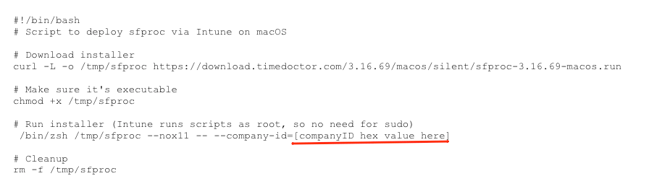
- View the script here: Installation Script
- Replace
[companyID hex value here]with the actual hex company ID.
Where to get the CompanyID hex value
Steps to Deploy via Intune
-
Open Microsoft Intune Admin Center.
-
Go to Devices > macOS.
-
Click Scripts and then Add.
-
In the Basics tab, complete the required information.
-
Under Script settings, upload the saved installation script.
-
Configure the following settings:
-
Run script as signed-in user: No
-
Hide script notification on devices: Not configured
-
Script frequency: Not configured
-
Max number of times to retry if script fails: 1
-
-
Leave Scope tags as default.
-
Under Assignments, select the appropriate device or user group.
-
Click Review + Add to finalize deployment.
Deployment Timeline and Verification
Deployment typically completes in 10–15 minutes. To verify successful installation:
-
Navigate to Devices > macOS in Intune.
-
Locate the script entry and review status.
-
Ask users to sync the Company Portal to apply updates.
Troubleshooting Tips (Optional)
-
Deployment pending: Instruct users to sync Company Portal.
-
Requirement mismatch: Confirm the macOS version is 10.15 or later and that the device is enrolled in Intune.
-
Detection issues: Ensure the script was uploaded correctly and contains the correct company ID.
- Needs device restart: In some cases, sync to deployment might remain pending, restart devices to trigger sync.
How to Uninstall the Automatic App via script
Create a new script to uninstall the Automatic App following the exact steps done during installation. Use this script in the Script Settings section of the process.
How to delete the Automatic App Folder via script
Create a new script to delete the Automatic App Folder created following the exact steps done during installation. Use this script in the Script Settings section of the process.
Should there be any inconsistencies or concerns regarding the article, contact support@timedoctor.com for prompt assistance.