
Note: Screencasts are available across Time Doctor plans for screenshots, while Video Screencasts are available on the Premium plan and as an add-on to the rest of the subscription plans. This feature can be accessed based on screencast visibility permissions set in the account. By default, Owners and Admins can view all screencasts, while Managers can view screencasts for users they manage.
TL;DR:
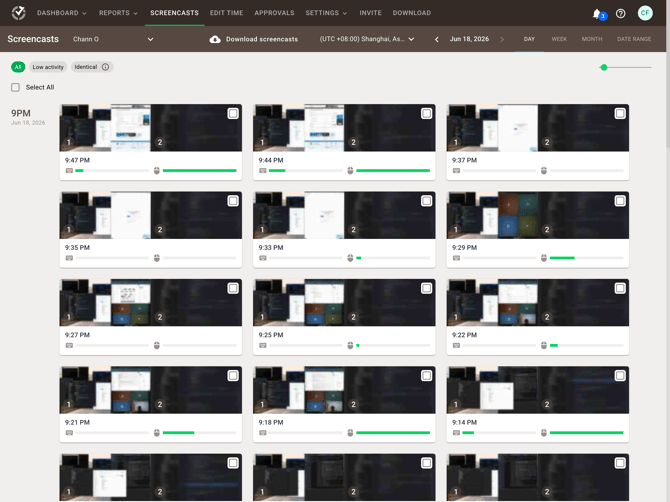
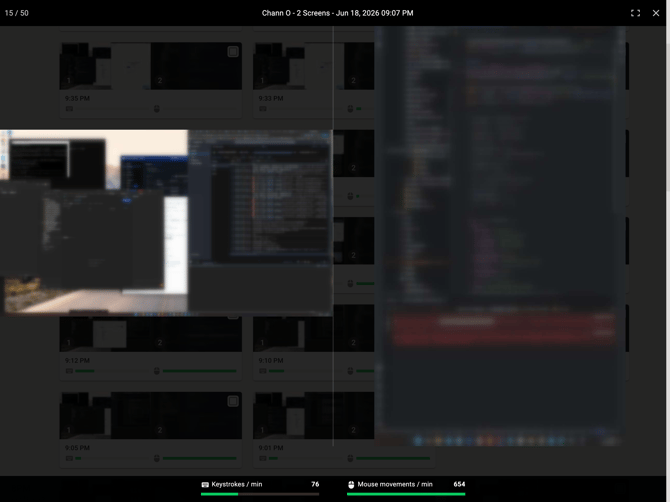
When multiple monitors are connected, Screencasts capture and display content from all connected screens. This applies to screenshot monitoring and should be considered when reviewing visibility, privacy, and bandwidth usage. For video-based screencast features, availability depends on the subscription plan and add-on status.
Use Screencasts to review screen activity while tracked time is running. When a user works with more than one monitor, Time Doctor captures content from all connected monitors rather than limiting capture to a single screen.
This behavior is important when reviewing employee activity, checking whether content is visible across displays, or configuring privacy expectations for monitored teams.
What happens when multiple screens are connected
If a user works with two or more monitors, Screencasts capture and display content from all connected monitors.
This means:
- Review all visible monitor content captured during tracked work.
- Expect broader visual coverage than a single-screen setup.
- Consider whether sensitive content may appear on any connected display.
Thumbnail View
Zoomed Dual Monitor
Where to review screencasts
Review screencasts from the Screencasts page in the Time Doctor web dashboard.
To review screencasts:
- Open the Screencasts page.
- Select the target user.
- Select the required date range.
- Open the captured screencast thumbnails to review activity.
Who can view screencasts
Screencast access depends on account permissions.
By default:
- Owners and Admins can view all screencasts.
- Managers can view screencasts for users they manage.
- Regular Users do not have access to other users’ screencasts
Only the Owner can define or change who can see other people’s screencasts in company settings.
Plan availability
Screencast-related availability varies by feature type:
- Screenshots — available across Time Doctor plans.
- Identical Screenshots — available on Standard and Premium.
- Video Screencasts / Video Recording — available on Premium and as an add-on to other plans.
- Continuous video screencast — not available on ChromeOS Browser App.
If the goal is to review ongoing screen video across multiple monitors, confirm that Video Screencasts are enabled and supported in the account’s current setup.
Privacy and compliance considerations
Because multiple screens may be captured at the same time, screencasts can include a larger amount of visible information than in a single-monitor setup.
Before enabling or reviewing screencasts:
- Confirm internal monitoring policies.
- Confirm lawful use under applicable privacy and data protection laws.
- Inform monitored users when required by company policy or local regulation.
- Review whether additional screens may expose sensitive or confidential information.
If needed, configure related privacy options such as screenshot blur where supported. Keep in mind that blurred screenshots cannot be unblurred later.
Bandwidth and performance considerations
Multiple connected monitors can increase bandwidth usage.
Bandwidth use may increase when:
- High-resolution monitors are connected.
- Screens display graphics-heavy or frequently changing content.
- More than one monitor is active during tracked time.
- Video recording is enabled.
If network efficiency is a concern, review screenshot frequency and video recording settings before enabling screencasts broadly.
Best practices for teams using multiple screens
Follow these best practices when using screencasts in multi-monitor environments:
- Define which teams require screencasts before enabling the feature.
- Review screencast permissions to avoid unnecessary visibility.
- Communicate monitoring expectations clearly.
- Use screenshot blur where appropriate.
- Test multi-monitor behavior on a small user group before wider rollout.
- Monitor bandwidth impact if video recording is enabled.
FAQ
Does Time Doctor capture both screens if two monitors are connected?
Yes. Screencasts capture and display content from all connected monitors.
Does this apply to screenshots only or also to video recording?
The multi-monitor guidance is verified for the Screencasts feature broadly, while video screencast availability depends on plan and add-on status.
Can blurred screenshots be restored later?
No. Once a screenshot is blurred, the change is irreversible.
Does using multiple monitors affect data usage?
Yes. Bandwidth usage can increase when multiple monitors are connected, especially with high-resolution or graphics-heavy content and when video recording is enabled.
Related articles
- How to Enable and Customize Screencasts Feature
- How to Use the Video Recording Feature in Time Doctor
- Why can’t I see screenshots of some users?
- How Much Data Does Time Doctor Use in a Day?
- Time Doctor Security and Compliance
Should there be any inconsistencies or concerns regarding the article, contact support@timedoctor.com for prompt assistance.