
Note: Screenshot download is available in all Time Doctor subscription plans and can be accessed by Admins, Managers, and Users (with permission).
TL;DR:
This article explains how to download individual or bulk screenshots from Time Doctor, depending on your access level and needs. When downloading screenshots for large date ranges or multiple users, split downloads into smaller batches by day, user, or hour.
Select a date or date range
Before downloading screenshots, specify the correct timeframe using the Date Selector on the Screenshots page. You can choose a specific day or define a custom date range. To do this:
- Go to the Screenshots page.
- Use the Date Selector in the top menu.
- Choose a specific day or define a custom date range.
This ensures only screenshots from the desired timeframe are included in your download.
Download individual screenshots
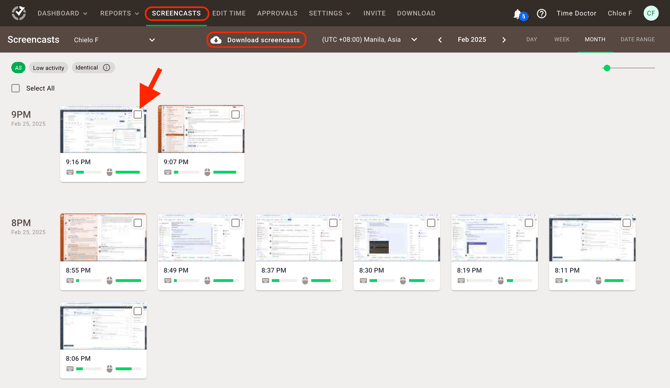
Admins, Managers, and Users with proper permissions can download individual screenshots by following these steps:
- Go to the Screenshots page.
- Filter by date, user, and other relevant criteria.
- Click the checkbox inside the targeted screenshot to select it for download.
- Click the Download icon that appears on the sub-menu header of the Screenshot page.
Note: Only screenshots that are visible to your access level can be downloaded.
Download bulk screenshots
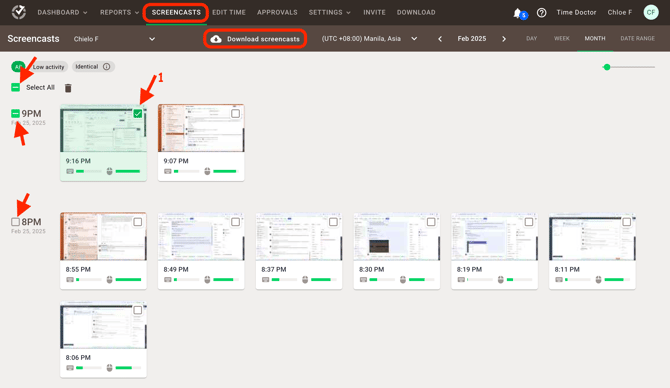
- Navigate to the Screenshots page.
- Use filters to narrow down the date, team, and individual users.
- Select the checkbox inside a screenshot to display the bulk selection options.
- Click Hourly to select all screenshots for the selected hour, or click Select All to select all visible screenshots.
- Click the Download icon that appears on the sub-menu header of the Screenshot page.
Note: The availability of this feature may depend on the number of screenshots and company-level settings.
If a Bulk Download Fails or Isn't Available:
Large selections can take a long time to prepare or may not download in one go. Download in smaller batches instead:
- On the Screenshots page, shorten the date range in the Date Selector, for example one day at a time.
- Filter to one user or a smaller team.
- Use Hourly selection instead of Select All.
- Click the Download icon and repeat for the next batch.
- If a smaller batch still fails, contact support@timedoctor.com with the date range, the users selected, and a screenshot of any error.
Should there be any inconsistencies or concerns regarding the article, contact support@timedoctor.com for prompt assistance.