
Note: The Automatic App is available on Time Doctor's Premium plan and can be accessed by Admins and Owners.
TL;DR:
To access the automatic version of the Time Doctor desktop app, change the account type under Settings / Company Settings to Mixed. This will make the automatic app appear on the download page alongside the interactive version.
How to Enable and Download the Automatic Version of Time Doctor
This guide explains why the automatic version of the Time Doctor app may not appear on the download page and how to enable it.
Why the Automatic App May Not Be Available
The option to download the automatic app may be missing due to the company account being configured as Interactive only. In this configuration, only the interactive version is available for download.
How to Enable the Automatic App
To make the automatic app available, update the company account settings to allow both versions.
Change the Account Type
-
Go to Settings / Company Settings.
-
Locate the Account Type option.
-
Select Mixed.
Once the change is saved, both the automatic and interactive apps will be available.
How to Download the Automatic App
After setting the account type to Mixed:
-
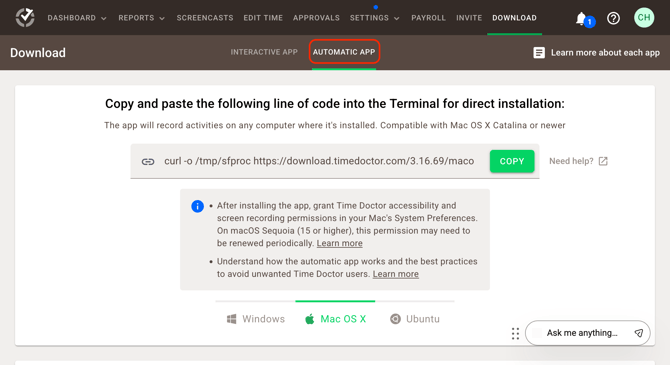
Navigate to the Download Page.
-
The Silent App (now Automatic App) option will now appear next to the interactive version.
Should there be any inconsistencies or concerns regarding the article, contact support@timedoctor.com for prompt assistance.