
TL;DR:
- Create, edit, or disable daily, weekly, and real-time email notifications from Settings / Email Notifications.
- Owners, Admins, and Managers can configure notifications for themselves or for any registered user.
- Employees update their own email address in My Account; the ability for regular users to edit their own email is controlled in Settings / Company Settings / Permission.
- Toggle off any notification that is no longer needed directly from Settings / Email Notifications.
- Send exact notification subject lines or screenshots to support if an issue cannot be resolved through these settings.
Where To Manage Notifications
Manage all Time Doctor email notifications from Settings / Email Notifications. Three notification types are available: daily, weekly, and real-time.
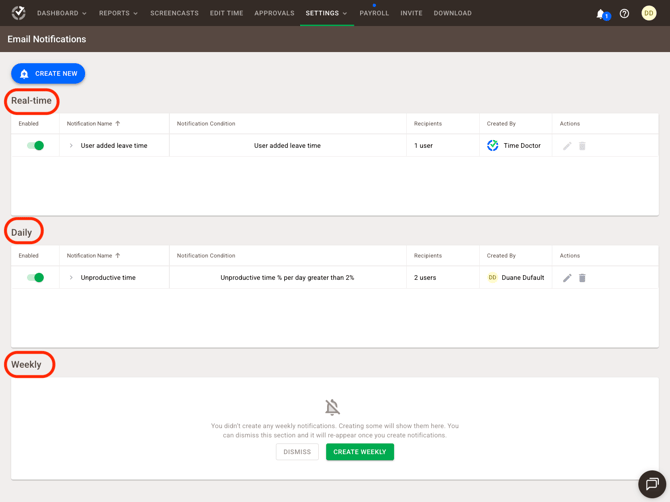
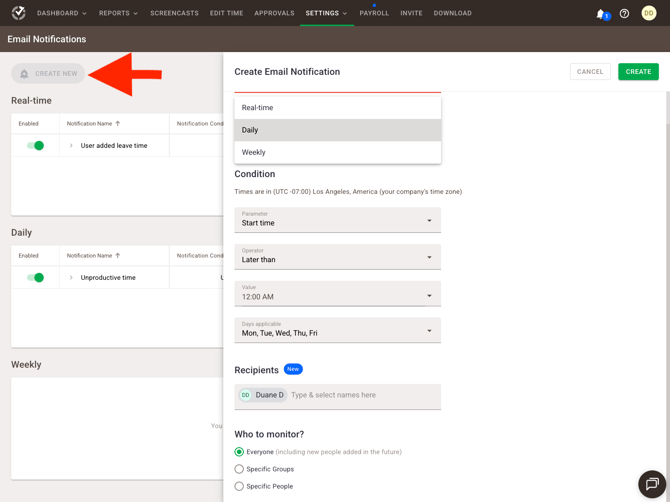
Create Or Update A Notification
- Open Settings / Email Notifications.
- Select a notification frequency: daily, weekly, or real-time.
- Set the trigger conditions for the notification (for example, unproductive time, late starts, or manual time added).
- Choose recipients and set the monitoring scope.
- Save the notification.
💡 Owners, Admins, or Managers can configure notifications for themselves or for any registered user.
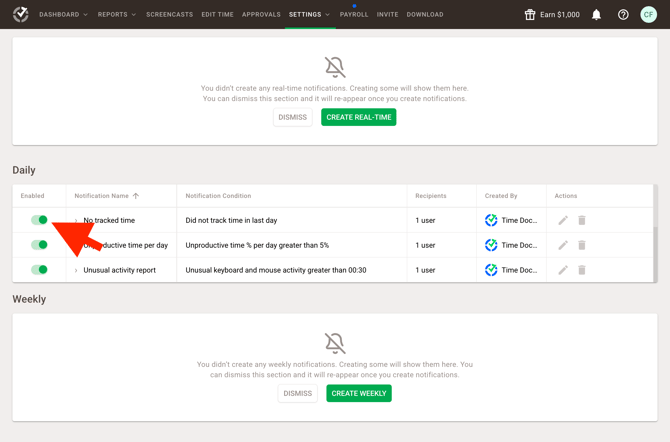
Disable Or Unsubscribe From Notifications
- Open Settings / Email Notifications.
- Review active notification types: daily, weekly, and real-time.
- Toggle off any notification that is no longer needed.
Managing Recipient And Permission Issues
If notifications arrive for users outside a manager's scope, check account permissions or ask an Admin to review recipient settings.
Employees must update their own email address in My Account; Admins cannot change an employee's email address. Control whether regular users can edit their own email address in Settings / Company Settings / Permission, under Allow regular users to change their email settings.
When Support Needs Access
If a notification issue cannot be resolved through the steps above, collect the exact notification subject line or a screenshot of the issue and send it to Time Doctor support for further investigation.
Use Settings / Email Notifications to create, edit, or disable daily, weekly, and real-time alerts. Confirm trigger conditions and recipients to keep monitoring scope accurate. Employees update their own email address in My Account, and Admins manage the related permission in Settings / Company Settings / Permission. Contact support with exact details if an issue persists.
Should there be any inconsistencies or concerns regarding the article, contact support@timedoctor.com for prompt assistance.