
Tip: Make sure to download the most recent version of the application from the Download page.
Note: The Meeting Insights report is available in the Premium plan or as an add-on. It can be accessed by Owners, Admins, and Managers. This feature is currently supported on Windows and macOS only. Linux support is not yet available.
TL;DR:
Meeting Time tracks the total duration a user’s microphone is active during meetings.
The Meeting Insights Report provides visibility into meeting duration, attendance, idle time, and application usage during meetings. Insights are available on user dashboards, team dashboards, executive dashboards, and activity summaries.
Meeting Time Tracking provides visibility into how much time users or teams spend in meetings. These insights help organizations evaluate meeting load, identify productivity patterns, and optimize collaboration.
Meeting Time is determined when an active application is associated with microphone usage. Tracking relies on microphone activity detection, regardless of whether the user is muted or which application is currently in focus.
How Meeting Time Is Detected
Meeting Time is recorded when the system detects that an active application is using the microphone.
Examples:
- When on a Zoom call while another application is in focus, the time is still recorded as meeting time because the microphone remains active.
- When on a Zoom call while muted, meeting time is still counted because the microphone session remains active.
When the Zoom application is open but no call is active, meeting time is not recorded because the microphone is not in use.
How to Access the Meeting Insights Report
- Log in to the Time Doctor Dashboard
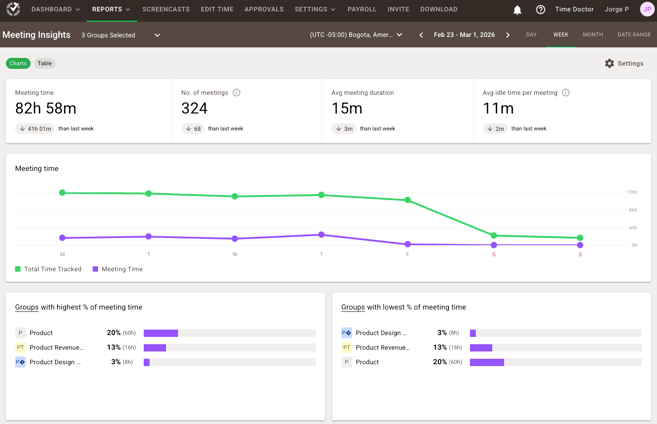
- Go to Reports / Meeting insights Report
Enable Google Calendar and Microphone Access
Google Calendar integration enriches meeting insights with additional meeting data.
Note: Google Calendar integration is available only for interactive companies.
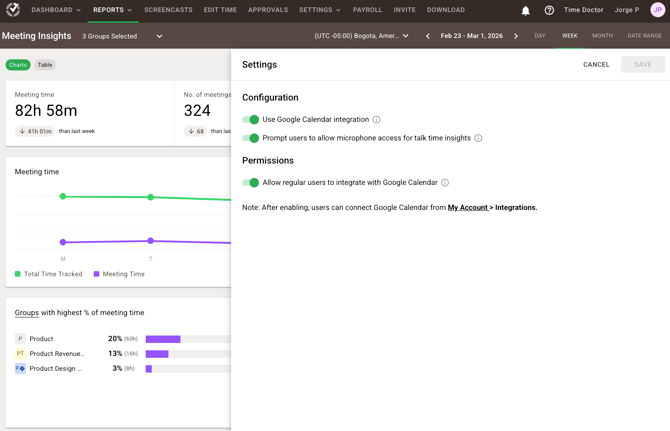
Enable Google Calendar Integration
- Go to Settings.
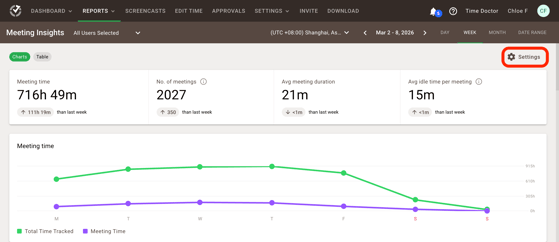
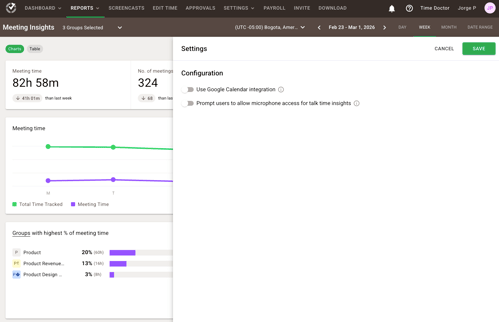
- Enable Use Google Calendar integration.
Once enabled:
- Owners, Admins, and Managers automatically receive access.
- To allow access for regular users, enable Allow regular users to integrate with Google Calendar.
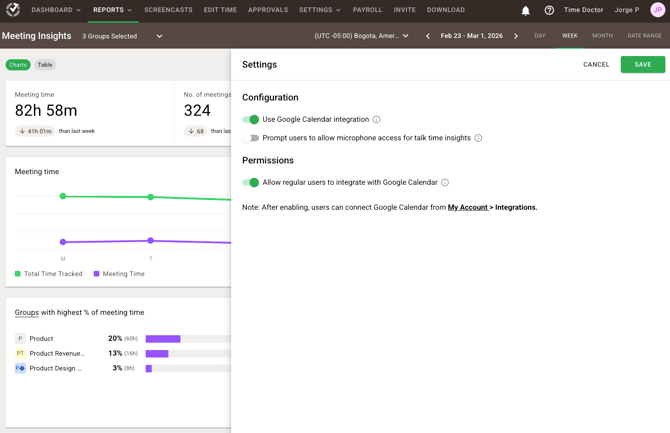
- Owners, Admins, and Managers automatically receive access.
- Enable Talk Time Insights
Enable Talk time insights to analyze how much each user speaks during meetings.
Talk time insights display the percentage of meeting time during which the user spoke.
When this setting is enabled:
- Users receive an additional permission request.
- The permission must be accepted to collect talk time dat
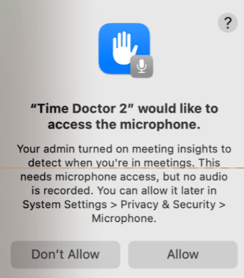
- Users receive an additional permission request.
How to Configure Google Calendar Integration
- Click the profile name in the top-right corner.
- Click My account.
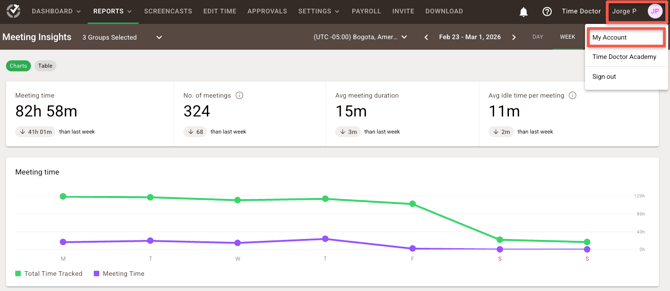
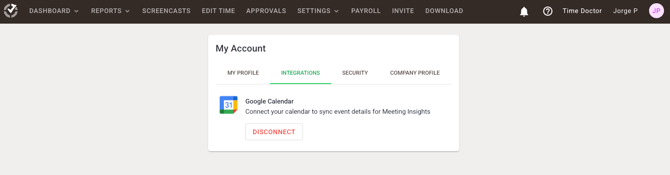
- Open the Integrations tab
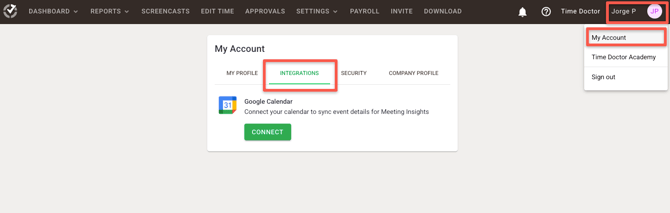
- Click Connect next to Google Calendar.
- Sign in to the Google account and approve the request.
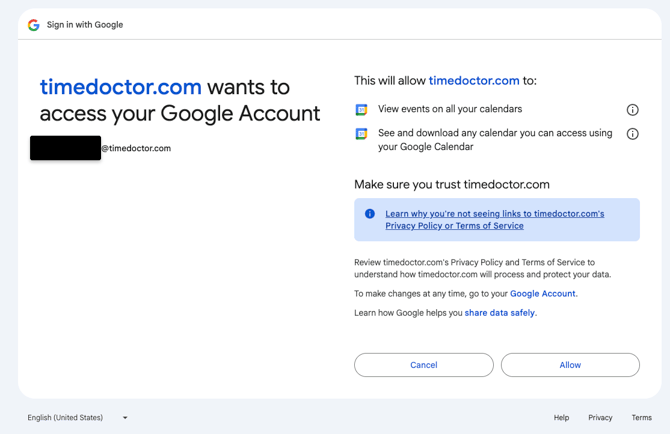
This allows Time Doctor to access meeting information from the user’s calendar.
To disconnect the calendar:
- Return to My account / Integrations.
- Click Disconnect next to Google Calendar.
Widget Descriptions
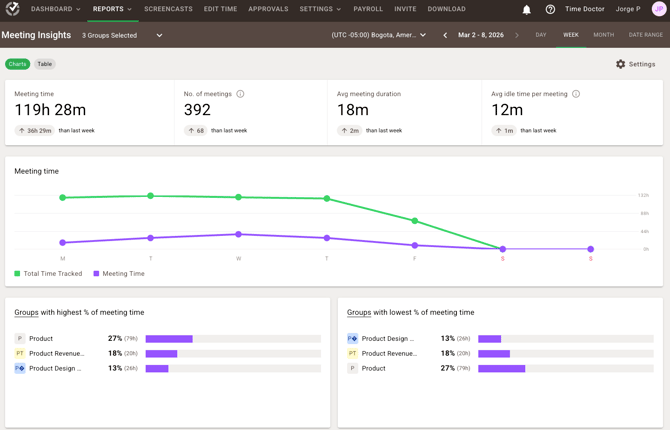
Meeting Time
- Meeting Time Total time users spent in meetings during the selected period.
- Number of Meetings Total number of meetings attended by users in the selected period.
- Average Meeting Duration Average length of meetings.
- Average Idle Time per Meeting Average time in meetings with no device activity (keyboard or mouse). A high value may indicate low engagement or multitasking. A high value might also indicate that the selected users or groups are the ones sharing screen during meetings.
Meeting Time vs Total Tracked Time
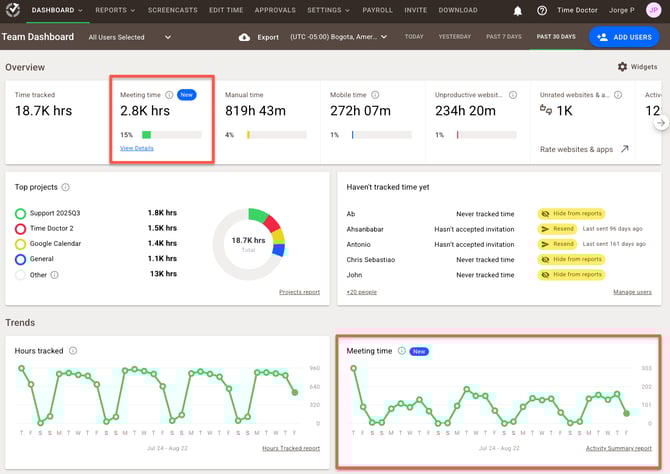
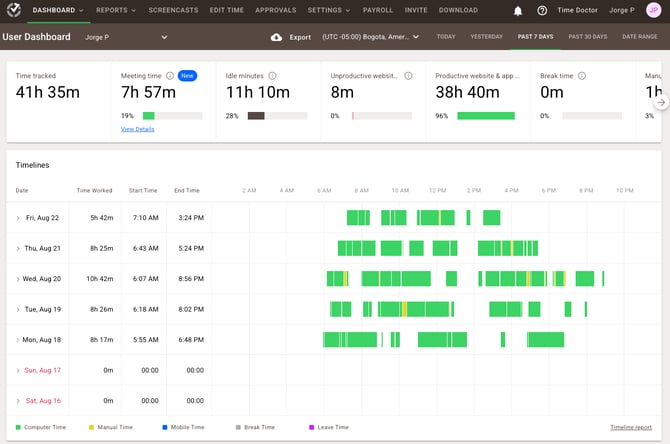
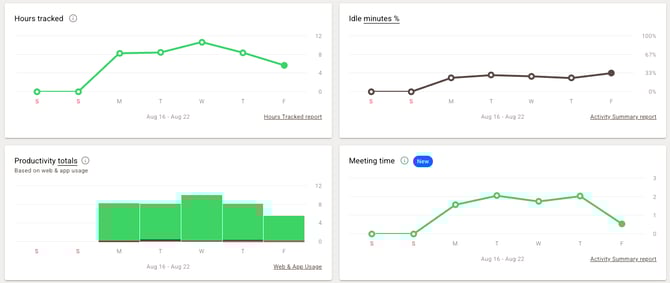
Visual comparison of meeting hours against total tracked work time over the selected date range. Useful for spotting trends like meeting-heavy days or dips during weekends.
Meeting Time by Group (Bar Charts)
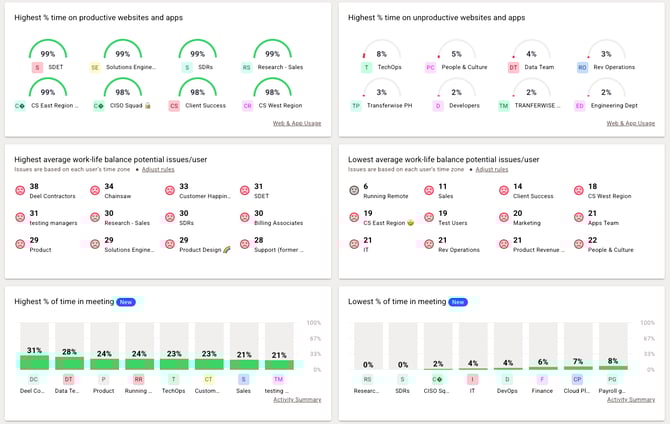
- Groups with Highest % of Meeting Time Shows which teams or departments spend the highest share of their time in meetings.
- Groups with Lowest % of Meeting Time Highlights teams with the least proportion of time in meetings, often indicating more focus time or async collaboration.
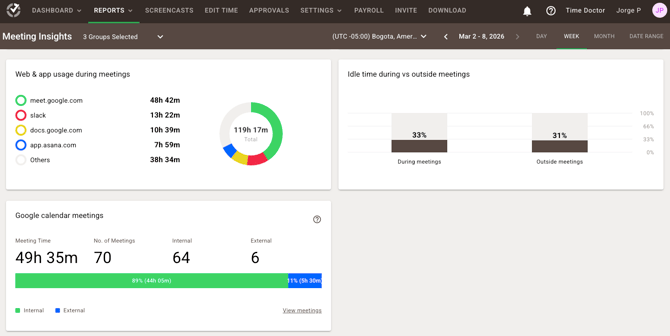
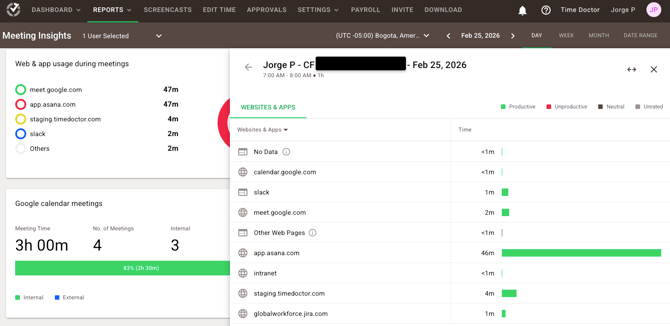
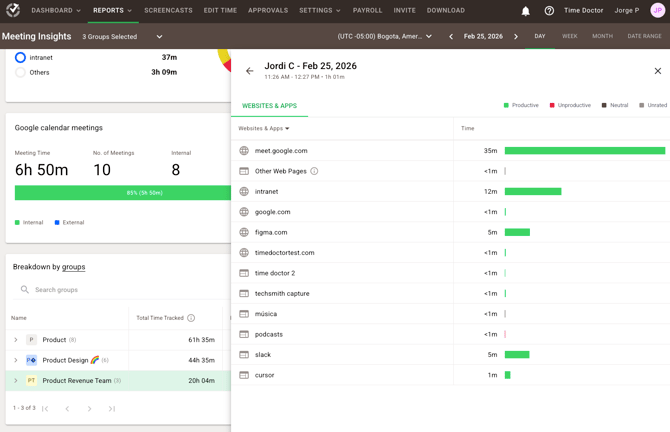
Web & App Usage During Meetings
Top Apps Used in Meetings
Breaks down which applications are most frequently active during meetings (e.g., Zoom, Google Meet, Figma).
- To visualize web & app usage in meetings, you need a Standard plan or above
Idle Time During vs Outside Meetings
Compares the percentage of idle time during meetings vs outside of them.
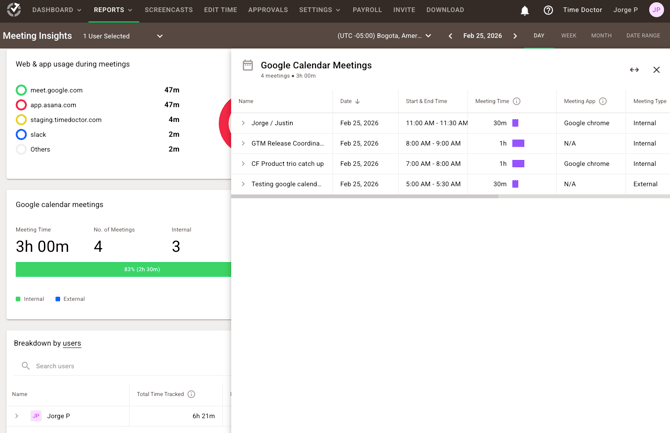
Google Calendar Meeting Insights
When Google Calendar integration is enabled, the report includes additional meeting details.
- Displayed information includes:
- Total meeting time
- Number of meetings
- Internal and external participants
- Attendance insights
- Talk time insights
Google Calendar Meeting Side Panel
For each meeting, the following information is displayed:
- Name: Meeting title.
- Meeting App: Application used for the meeting (e.g., Google Meet or Zoom).
- Meeting Type: Internal or external meeting.
- Attendees: Total number of participants.
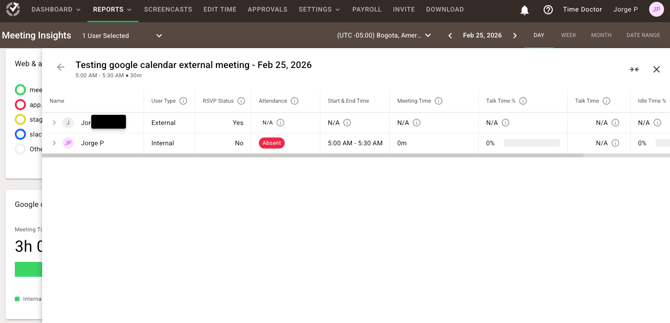
- Attendance Status: Attendance is calculated based on the percentage of the meeting duration joined:
- Present: 80% or more
- Partially Present: 10–79%
- Absent: Less than 10%
- Invitees: Total number of invited participants, including internal and external breakdowns.
- RSVP Status: Displays who accepted, declined, or has not responded to the meeting invitation.
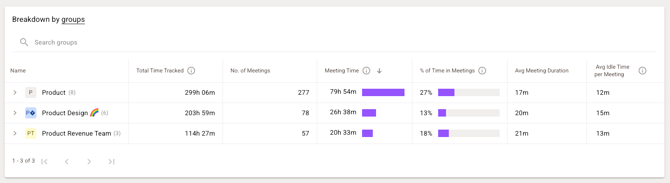
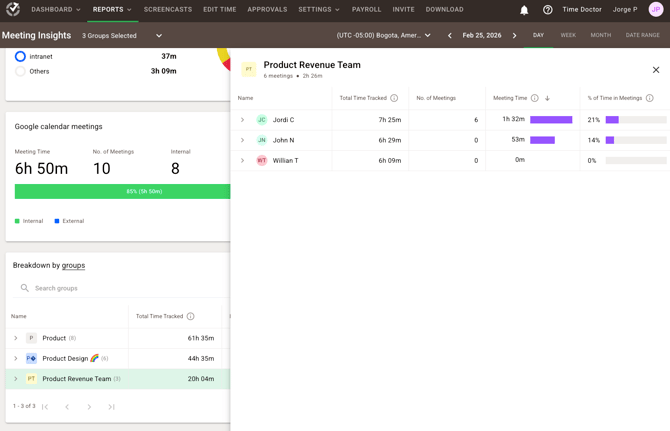
Group Breakdown Table
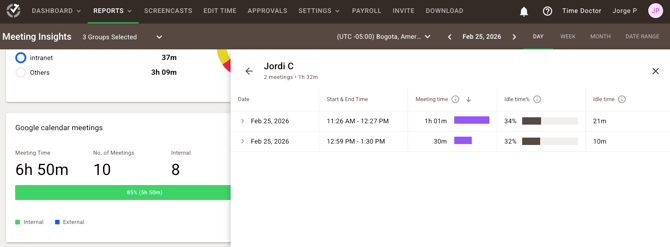
A detailed table showing per-group meeting engagement:
- Total Time Tracked: Total work hours recorded.
- No. of Meetings: Number of meetings attended.
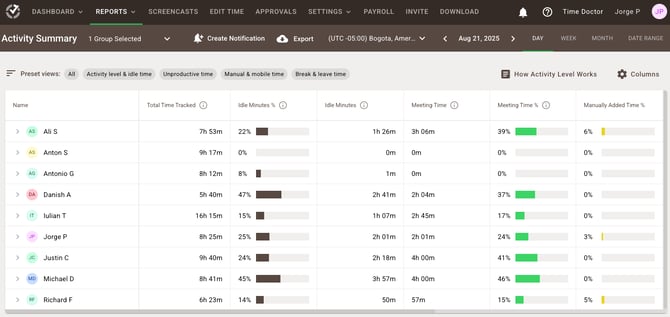
- Meeting Time: Total time spent in meetings.
- % of Time in Meetings: Share of meeting time out of total time tracked.
- Avg Meeting Duration: Average duration of meetings per group.
- Avg Idle Time per Meeting: Average inactive time during meetings per group.
Report
Report - Google Calendar meetings
Report - Breakdown by groups
Extra details on other reports
Viewed via Team Dashboard
Viewed via User Dashboard
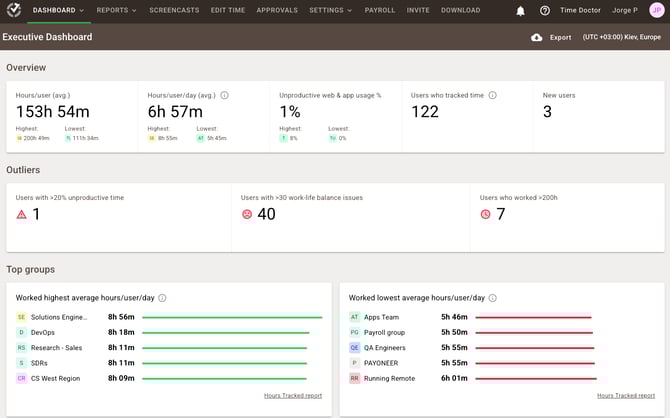
Viewed via Executive Dashboard
Viewed via Activity Summary
If Microphone Access Was Denied
Microphone permission is required for all Meeting Insights data.
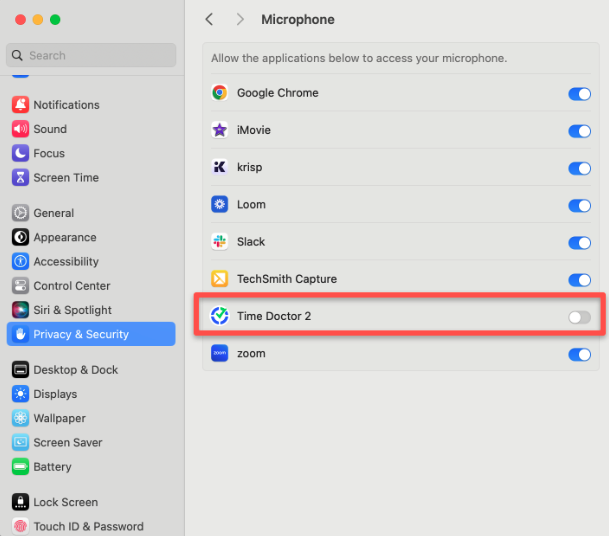
If microphone access was denied during setup, enable it manually in the operating system settings.
macOS
- Click the Apple menu.
- Select System Settings.
- Go to Privacy & Security.
- Select Microphone.
- Enable access for Time Doctor 2.
Windows
- Click the Start menu.
- Click Settings.
- Go to Privacy & Security.
- Click Microphone.
- Turn on Microphone access.
- Make sure Time Doctor 2 is allowed to access the microphone.
💡Tip: Microphone Detection and Privacy
Our microphone detection feature does not record, listen to, capture, store, or transmit any audio content from meetings or other applications. It does not access or save conversations.
The feature simply detects whether the microphone is active in order to reflect Meeting Time.
Meeting Time represents the total duration during which the microphone is active on the device, regardless of:
- Whether the microphone is muted or unmuted within a meeting app
- Which application is being used
No audio data is recorded or retained at any point — the functionality is strictly activity detection, not audio monitoring.
Should there be any inconsistencies or concerns regarding the article, contact support@timedoctor.com for prompt assistance.