
Note: Mobile App Time Tracking is available in all Time Doctor subscription plans and can be accessed by company Owners and Admins.
TL;DR:
Mobile time tracking allows users to track time using the Time Doctor mobile app. Company Owners and Admins can enable mobile tracking for everyone, disable it for all users, or allow it only for selected users from Settings / Company Settings.
Caution: Due to privacy and compliance requirements, the Time Doctor mobile app does not track or collect data from the phone itself. It only records the hours tracked while the mobile timer is running and does not capture apps, content, or other phone activity.
Mobile time tracking allows Users to track time while working away from a desktop computer. This feature is useful for field teams, mobile workers, and employees who primarily work using smartphones or tablets.
Company Owners and Admins can control who is allowed to use mobile time tracking by configuring the Mobile Time Tracking setting in the web dashboard.
How To Configure Mobile Time Tracking
-
Log in to the Time Doctor web dashboard.
-
Go to Settings / Company Settings.
-
Locate the Mobile Time Tracking setting.
-
Select the preferred option.
-
Click Save to apply the changes.
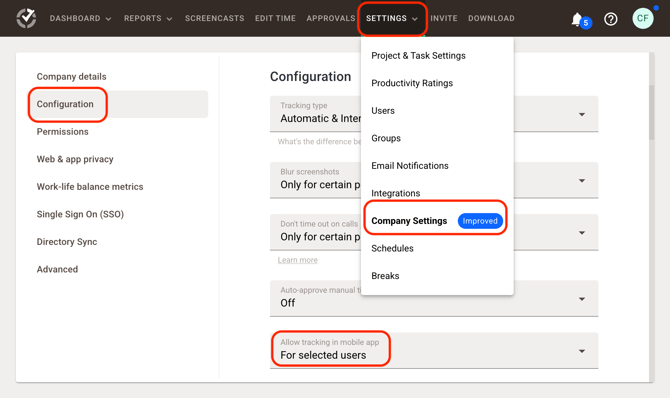
Mobile Time Tracking Options
For Everyone
Select For everyone to allow all Users in the company to track time using the Time Doctor mobile app. Once enabled, any User who installs and logs in to the mobile app can start tracking time from their mobile device.
For No One
Select For no one to disable mobile time tracking completely. Users will not be able to track time using the mobile app and must use the desktop app or any other enabled tracking method.
For Selected Users
Select For selected users to allow mobile time tracking only for specific Users.
After selecting this option, choose the Users who should be allowed to track time on mobile devices. Only the selected Users will be able to start time tracking from the mobile app.
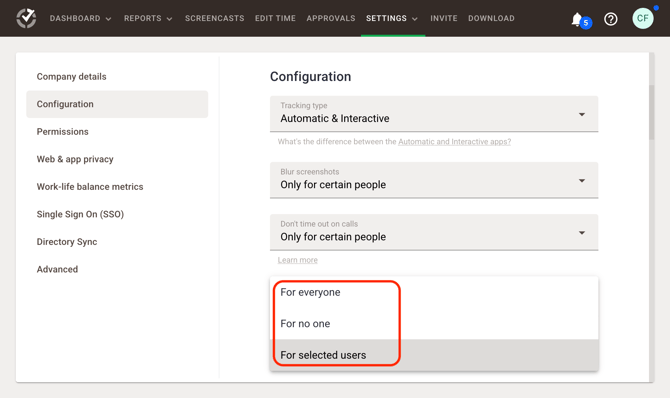
When To Use Mobile Time Tracking
Mobile time tracking is commonly used for:
-
Field employees
-
Remote teams who frequently work away from desktops
-
Sales representatives
-
On-site service staff
Additional Notes
Changes to the Mobile Time Tracking setting apply immediately after saving the configuration. Users who are not permitted to use mobile tracking will not be able to start timers from the mobile app.
Should there be any inconsistencies or concerns regarding the article, contact support@timedoctor.com for prompt assistance.