
Note: Attendance Report is available on all Time Doctor subscription plans except Basic and can be accessed by Owners, Admins, Managers, and Regular users by default. Clients are excluded.
TL;DR:
Use the Attendance Report to review whether Users were present, late, absent, partially absent, or on leave for scheduled shifts. Enable Schedules first, then open Attendance from Reports to compare scheduled shift details with actual tracked time.
Use the Attendance Report to review schedule-based attendance for Users day by day. Compare scheduled shift details with actual tracked time to identify late starts, absences, partial attendance, and leave.
Before Starting
Enable Schedules in Settings / Company Settings and configure shifts in Settings / Schedules. The Attendance report does not show meaningful data until schedules exist.
-
Open the Attendance Report
-
Go to Reports and select Attendance.
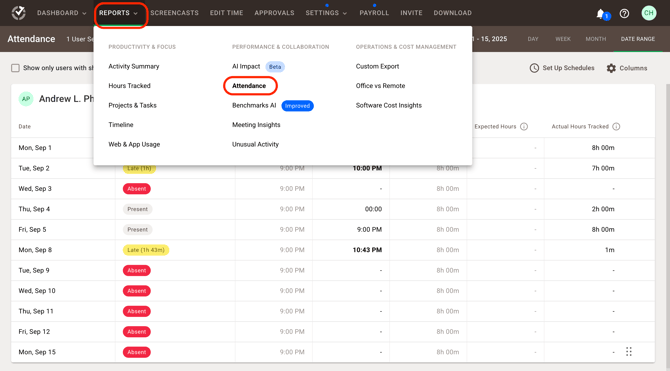
Understand the Filters and Controls
Use the controls at the top of the page to change what appears in the report.
User Selector
Use the selector beside Attendance to choose which Users to include in the report.
Time Zone
Review the selected time zone before interpreting the report. Shift times and time-based columns reflect the selected time zone.
Date Navigation
Use the date controls to move backward or forward through the report. Switch between Day, Week, Month, and Date Range if those options are shown in the screenshot.
Show only users with shifts
Use this filter to hide Users who do not have schedules assigned.
Show only absent, partially absent, and late
Use this filter to focus on attendance issues. Keep in mind that rows with On Leave status are hidden when this filter is enabled.
Set Up Schedules
Use this shortcut to open Settings / Schedules and configure shift start times, end times, and optional minimum required hours.
Columns
Click Columns to show or hide report fields such as shift timing, expected hours, actual hours, and other attendance-related details.
Read the Report
Each User section in the report shows attendance details for the selected period. Keep the layout description aligned with the attached screenshot.
Inside the report table, review the following columns and values:
-
Date: Review the calendar date shown for the shift record.
-
Status: Use Status as the quickest way to interpret attendance for a scheduled shift. The official statuses are: Present, Late, Absent, Partially Absent, On Leave, and Shift Underway.
-
Present — Time was tracked within the required window after the shift started. If minimum hours are set, the shift must also meet Expected Hours.
-
Absent — No time was tracked during scheduled shift hours.
-
Late — No time was tracked within the first five minutes after shift start, but time was tracked later in the shift.
-
Partially Absent — Some time was tracked during the shift, but tracked time did not meet Expected Hours.
-
On Leave — An approved leave entry exists in Settings / Schedules.
-
Shift Underway — The shift is still in progress, so the final attendance result has not been determined yet.
-
Shift Start Time: Review the scheduled shift start time defined in Settings / Schedules.
-
-
Actual Start Time: Review the earliest time worked during the shift. Time worked before the shift start is excluded from this value.
-
Shift Length: Review the total duration between the scheduled shift start and end times.
-
Expected Hours: Review the optional hours expected during the shift. This value matches the minimum required hours configured in Schedules and may be shorter than the full shift length.
-
Actual Hours Worked: Review the total time tracked during scheduled shift hours only. Time tracked before the shift starts or after the shift ends is excluded.
Understand Important Attendance Rules
Keep these rules in mind when interpreting results:
-
A five-minute grace period applies to lateness.
-
If both Late and Partially Absent could apply, the report shows Partially Absent.
-
Shifts that run past midnight appear on the start date only.
-
Multiple shifts on the same day for one User appear as separate rows.
-
Shifts that have not started yet are hidden.
Export the Report
Use the export option shown in the screenshot to download attendance data. The screenshot also confirms that attendance-related reports support export controls in the interface.
Set Up Notifications
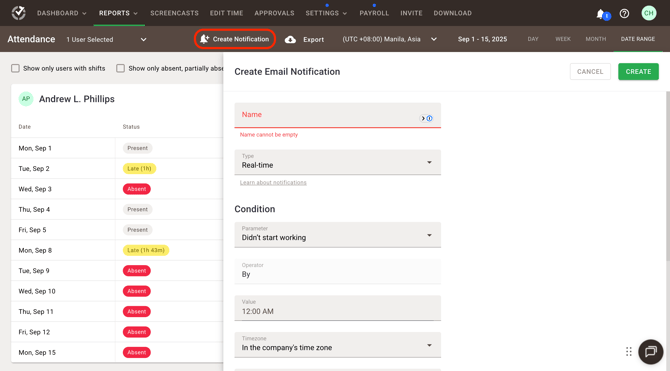
Use Create Notification from the Attendance report if this option is visible in the interface. This can help monitor attendance-related conditions directly from the report workflow.
Best Practices
-
Enable Schedules before relying on the report.
-
Set Minimum Required Hours if partial attendance should be measured against a defined threshold.
-
Review the selected time zone before evaluating lateness or start times.
-
Compare Shift Start Time, Actual Start Time, and Actual Hours Worked together for the clearest interpretation.
FAQs
Why does a User appear absent even though work was done that day?
Check whether time was tracked outside scheduled shift hours. The attendance calculation uses time tracked during scheduled shift hours, not all time tracked during the day. Review related day-based fields or other reports for additional context.
Why does Expected Hours show a dash or stay blank?
Check whether Minimum Required Hours has been configured in Settings / Schedules. Without that setting, Expected Hours may not be populated.
Why is Actual Hours Worked lower than Shift Length?
Review whether the User started late or tracked only part of the shift. Actual Hours Worked includes only time tracked during scheduled shift hours.
What does the time shown next to Late mean?
Interpret it as the amount of time between the scheduled shift start and the point when tracked time began later in the shift, based on the UI shown in the screenshot.
Why do some dates or rows not appear?
Check whether the shift has not started yet, whether the User has no shift for that day, or whether filters are hiding certain rows such as On Leave entries.
Related References
Should there be any inconsistencies or concerns regarding the article, contact support@timedoctor.com for prompt assistance.