
Note: Meeting Insights is available in the Premium plan or as an add-on and can be accessed by Owners, Admins, and Managers. This feature is currently supported on Windows and macOS only. Linux support is not yet available.
Tip: Download the most recent version of the application from the Download page.
TL;DR
-
Use Meeting Time to understand how long the microphone was active during meetings.
-
Use the Meeting Insights report to review meeting duration, attendance, idle time, and app usage during meetings.
-
Do not interpret Meeting Time as audio recording. The feature detects microphone activity only and does not record or store audio.
-
Expect Google Calendar fields such as attendees, invitees, RSVP status, and attendance details only when Google Calendar integration is enabled for an Interactive company.
Use this article to answer a common question: What does each section of the Meeting Time article actually mean?
Read the report in this order:
-
Confirm what Meeting Time measures.
-
Review the top summary widgets.
-
Compare Meeting Time against total tracked time.
-
Check group-level patterns.
-
Review Google Calendar meeting details, if enabled.
-
Use the privacy note to explain what is and is not collected.
What Meeting Time actually means
Meeting Time represents the total duration during which the microphone is active on the device during meetings.
🚫 Do not read it as:
-
a recording of conversations
-
proof that audio was captured
-
proof that a meeting app was the active window the entire time
✅ Read it as:
-
a measurement of microphone activity associated with meeting activity
How Meeting Time is detected
Meeting Time is recorded when the system detects that an active application is using the microphone.
Here are some sample scenarios:
If a Zoom call is active but another app is in focus, Meeting Time still counts because the microphone remains active.
If a Zoom call is active and the user is muted, Meeting Time still counts because the microphone session remains active.
If Zoom is open but no call is active, Meeting Time does not count because the microphone is not in use.
How to open the Meeting Insights report
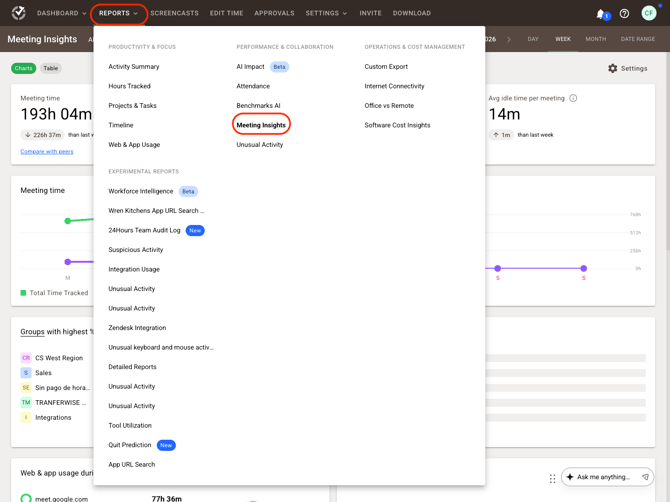
-
Log in to the Time Doctor Dashboard.
How to read the main report widgets
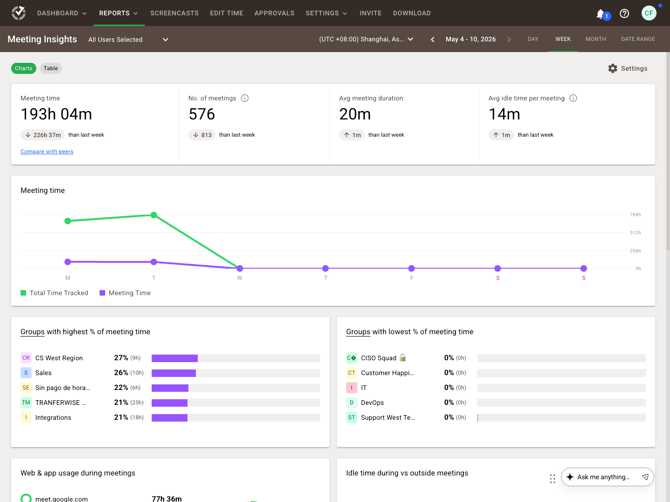
Meeting Time
Read this widget as the total amount of time spent in meetings during the selected period.
Number of Meetings
Read this as the total number of meetings attended during the selected period.
Average Meeting Duration
Read this as the average length of meetings.
Average Idle Time per Meeting
Read this as the average time during meetings with no keyboard or mouse activity.
Do not assume a high idle value always means disengagement. It may also reflect screen sharing or low device interaction during the meeting.
How to read Meeting Time vs Total Tracked Time
Use this section to compare meeting hours against total tracked work time over the selected date range.
Interpret it this way:
A higher meeting share may indicate meeting-heavy workdays.
A lower meeting share may indicate more focus time.
A drop on weekends or non-working days may be normal.
How to read Meeting Time by Group
Use the bar charts to compare how groups spend time in meetings.
Groups with Highest % of Meeting Time
Use this to identify teams spending the largest share of tracked time in meetings.
Groups with Lowest % of Meeting Time
Use this to identify teams spending less of their tracked time in meetings, which may indicate more asynchronous work or more uninterrupted focus time.
How to read Web & App Usage During Meetings
Use Top Apps Used in Meetings to see which applications are most frequently active during meetings, such as Zoom, Google Meet, or Figma.
Note that web and app usage in meetings requires a Standard plan or above to visualize.
How to read Idle Time During vs Outside Meetings
Use this comparison to see whether idle time changes when users are in meetings versus outside meetings.
Interpret carefully:
Higher idle time during meetings does not automatically mean low participation.
Some meetings require listening, screen viewing, or screen sharing rather than continuous keyboard or mouse use.
How Google Calendar changes the report
Google Calendar integration adds more meeting context to the report.
This integration is available only for Interactive companies.
Enable Google Calendar integration
-
Go to Settings.
-
Enable Use Google Calendar integration.
-
If needed, enable Allow regular users to integrate with Google Calendar.
Owners, Admins, and Managers receive access automatically once the setting is enabled.
Enable Talk Time Insights
Enable Talk time insights to analyze how much each user speaks during meetings.
Read Talk time insights as the percentage of meeting time during which the user spoke.
When enabled:
users receive an additional permission request
the request must be accepted to collect talk time data
How users connect Google Calendar
-
Click the profile name in the top-right corner.
-
Click My account.
-
Open the Integrations tab.
-
Click Connect next to Google Calendar.
-
Sign in to the Google account and approve the request.
To disconnect:
-
Return to My account > Integrations.
-
Click Disconnect next to Google Calendar.
How to read Google Calendar meeting details
When Google Calendar integration is enabled, additional meeting information appears in the report.
Read the fields as follows:
Name
The meeting title.
Meeting App
The application used for the meeting, such as Google Meet or Zoom.
Meeting Type
Whether the meeting is internal or external.
Attendees
The total number of participants.
Invitees
The total number of invited participants, including internal and external breakdowns.
RSVP Status
Who accepted, declined, or has not responded to the invite.
Attendance Status
Attendance is calculated based on the percentage of the meeting duration joined:
-
-
Present: 80% or more
-
Partially Present: 10–79%
-
Absent: Less than 10%
-
Talk Time Insights
The percentage of meeting time during which the user spoke, if the required permission was granted.
How to read the Group Breakdown Table
Use this table for a more detailed group-by-group review.
Total Time Tracked
Total work hours recorded.
No. of Meetings
Number of meetings attended.
Meeting Time
Total time spent in meetings.
% of Time in Meetings
Share of meeting time out of total tracked time.
Avg Meeting Duration
Average meeting duration for the group.
Avg Idle Time per Meeting
Average inactive time during meetings for the group.
Why Meeting Time and calendar data may look different
There will be noticeable differences between Meeting Time and calendar-based meeting details and here are the reasons why:
-
Meeting Time is based on microphone activity detection during meetings.
-
Google Calendar details come from the connected calendar and add scheduling and attendance context.
Because these data sources describe different parts of the meeting experience, they should not always be expected to match exactly.
If microphone access was denied
Microphone permission is required for all Meeting Insights data. If access was denied during setup, enable it manually in the operating system.
macOS
-
-
Click the Apple menu.
-
Select System Settings.
-
Go to Privacy & Security.
-
Select Microphone.
-
Enable access for Time Doctor 2.
-
Windows
-
-
Click the Start menu.
-
Click Settings.
-
Go to Privacy & Security.
-
Click Microphone.
-
Turn on Microphone access.
-
Make sure Time Doctor 2 is allowed to access the microphone.
-
Privacy and Audio Use
Time Doctor does not record, listen to, capture, store, or transmit any audio from your meetings or other applications.
Our Meeting Time feature only detects whether your microphone is active so that we can accurately reflect “Meeting Time” in your report. It does not access or save your conversations in any way. No audio data is recorded, analyzed, or retained.
FAQs
Does Meeting Time still count if the meeting app is in the background?
Yes. Meeting Time can still be recorded if the meeting is active and the microphone remains active, even when another application is in focus.
Does Meeting Time still count if the user is muted?
Yes. Meeting Time can still be counted while muted because the microphone session remains active.
Does Meeting Time count if Zoom is open but no meeting is active?
No. If Zoom is open but no call is active, meeting time is not recorded because the microphone is not in use.
Why is there no talk time data?
Check whether Talk time insights is enabled and whether the user accepted the additional permission request required to collect talk time data.
Why are calendar details missing?
Check whether Google Calendar integration is enabled and whether the company uses the Interactive tracking type.
Why does high idle time appear during meetings?
High idle time may reflect low device interaction, multitasking, or screen sharing. Review the context before treating it as a performance issue.
Is audio recorded for Meeting Time?
No. The feature detects microphone activity only. It does not record, store, or transmit audio content.
Should there be any inconsistencies or concerns regarding the article, contact support@timedoctor.com for prompt assistance.