
Note: The Office vs Remote Report is available in the Premium plan or as an add-on. It can be accessed by Owners, Admins, and Managers. The Configure Office IP Addresses feature is available only to Owners and Admins.
TL;DR:
Quickly compare productivity by location (office, remote, or hybrid) using the Office vs Remote Report. Configure IPs or Wi-Fi names to classify locations and review data like average hours worked, start/end times, and productivity metrics.
Overview
The Office vs Remote Report compares productivity for Users working:
- In-office
- Remotely
- Both (hybrid) on the same day
This report offers insights into how work locations affect efficiency, performance, and engagement.
How to Access the Report
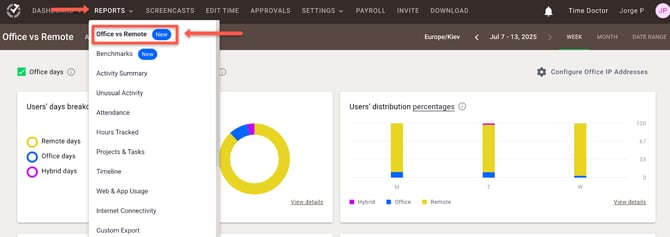
- Log in to the Time Doctor Dashboard:
- Go to Reports / Office vs Remote Report:
How to Configure Office IP Addresses
Manual via Public IP
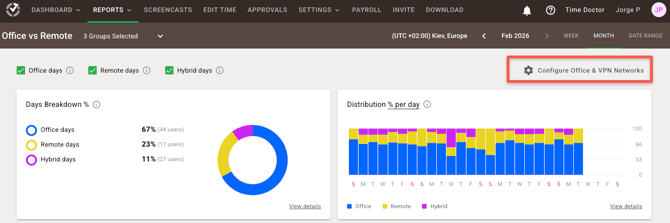
- Click Configure Office & VPN Networks.
- Under the Manual via Public IP tab,
- Enter the public IP addresses for your office or VPN location.
- Under Network, select the appropriate option:
- Office: Users connected to this IP address will be marked as working in-office.
- VPN: The system will check the public IP address along with additional network details, such as the Wi-Fi name or SSID.
- If the details match your company network, the session will be classified as office.
- If they do not match, the session will be classified as remote.
- Save your changes.
.png?width=670&height=336&name=image%20(1).png)
Automatic via Wi-Fi Name
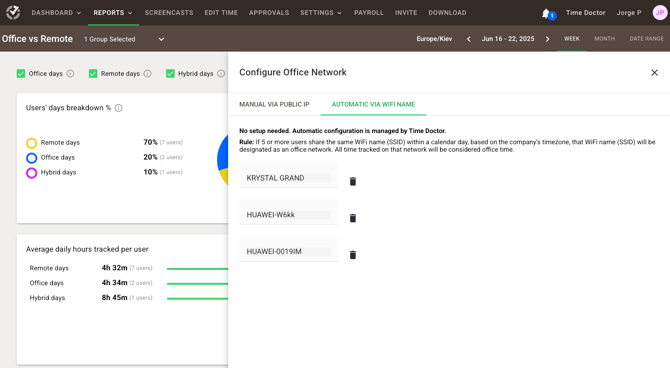
- Select the Automatic via Wi-Fi Name tab.
- When five or more Users connect using the same Wi-Fi SSID, the system auto-classifies it as an office network.
- If a Wi-Fi entry is deleted, classification is updated the next day at midnight UTC.
Note: Only public IP addresses can be used. All others are labeled as remote. The report refreshes daily at midnight UTC.
Understanding the Data
The report uses side-by-side comparisons to identify location-based productivity patterns.
- Office: Time tracked in defined office locations.
- Remote: Time tracked outside defined office locations.
- Hybrid: Time tracked in both office and remote locations on the same day (based on company time zone).
Widget Descriptions
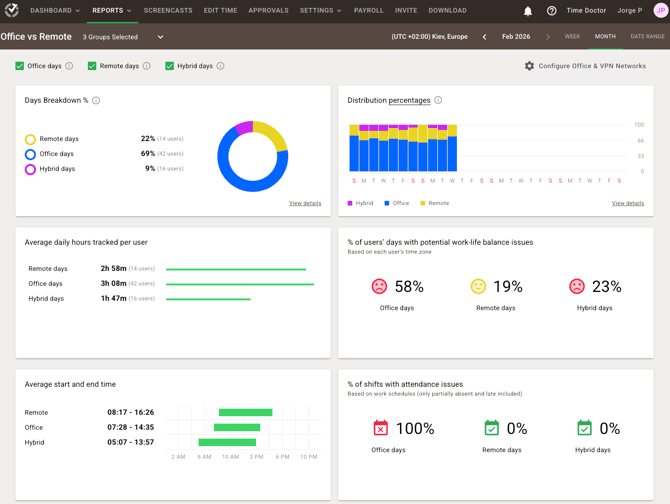
- Users' Location Breakdown %: Percent of Users working in each location for the selected time range. Use the side panel to drill down by date.
- Users' Location Distribution % per Day: Daily distribution of User locations. Click into each day to view User-specific data.
- Average Hours/User/Day: Average hours worked per User each day.
- Average Start and End Times: Displays usual start and end times by work location.
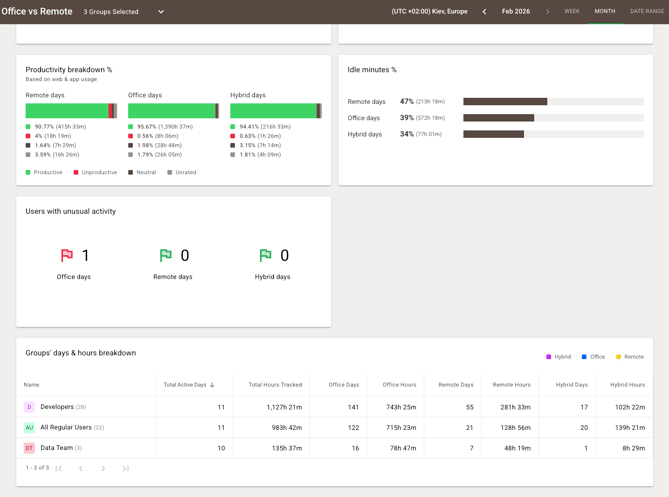
- Productivity Breakdown %: Shows proportions of time spent on productive, unproductive, and neutral tasks.
- % of users’ days with potential work-life balance issues: Shows the proportion of users who may be at risk of work-life balance issues based on their tracked behavior
- Thresholds:
- 0% Satisfied: No users are showing signs of imbalance.
- >0% and <20% Neutral: A few users may need a quick check-in or closer attention
- ≥20% Dissatisfied: When 20% or more are flagged, it’s a sign that several users may need support
- Thresholds:
- % of shifts with attendance issues: Shows the proportion of users who present potential attendance problems
- Thresholds:
- 0% Green: No attendance issues detected.
- >0% and <30% Yellow: A few users may need a quick check-in or closer attention
- ≥30% Red: When 20% or more are flagged, it’s a sign that several users may need support
- Thresholds:
- Idle Minutes %: Percent of time with no mouse or keyboard activity, segmented by location.
- Users with Unusual Activity: Flags users with suspicious behavior patterns (e.g., high input rates), segmented by location.
- Groups’ Days Breakdown: Shows % of office, remote, and hybrid days per group during the selected period.
Note: The Office vs Remote Report began tracking data on June 15, 2025.
Should there be any inconsistencies or concerns regarding the article, contact support@timedoctor.com for prompt assistance.