
Note: Office vs Remote Report is available in the Premium plan or as an add-on. It can be accessed by Owners, Admins, and Managers. Configure Office IP Addresses is available only to Owners and Admins.
TL;DR:
Review how Users work by location—office, remote, or hybrid—from one report. Classify locations using public IPs or Wi‑Fi names, then compare hours, start and end times, productivity, attendance signals, work-life balance signals, idle time, unusual activity, and group trends.
Use the Office vs Remote Report to compare productivity for Users working:
-
In-office
-
Remotely
-
Hybrid on the same day
Use this report to understand how work location affects efficiency, performance, and engagement.
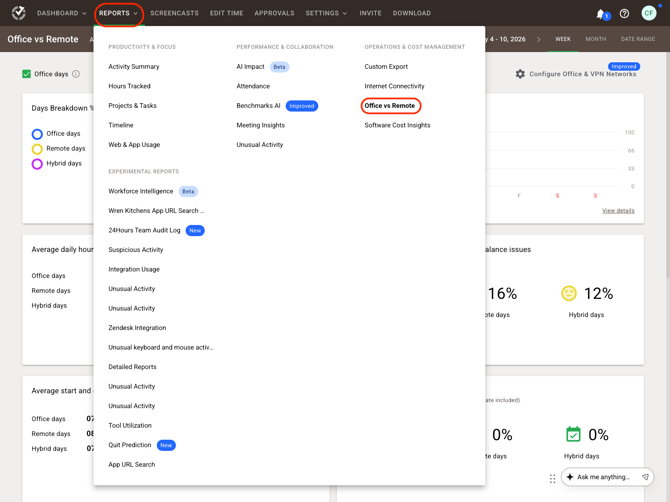
How to access the report
-
Log in to the Time Doctor Dashboard.
How the report decides whether work is office, remote, or hybrid
The report uses configured network information to classify where time was tracked.
-
Office
Treat time as office when it is tracked in a defined office location.
-
Remote
Treat time as remote when it is tracked outside defined office locations.
-
Hybrid
Treat time as hybrid when time is tracked in both office and remote locations on the same day, based on the company time zone.
How to configure office locations
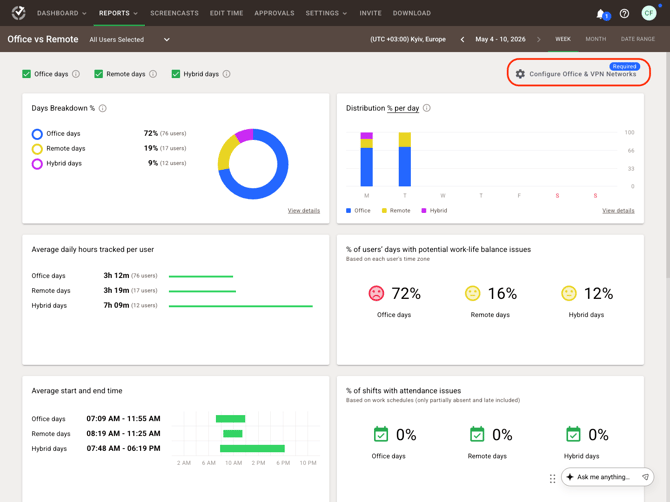
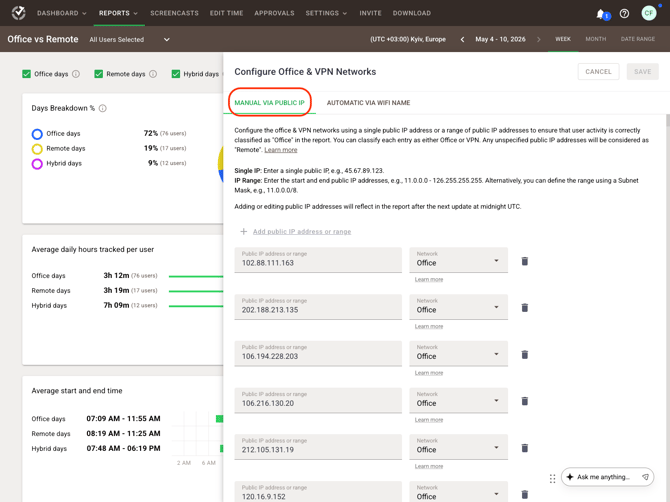
Manual via Public IP
-
Click Configure Office & VPN Networks.
-
Open the Manual via Public IP tab.
-
Enter the public IP addresses for the office or VPN location.
-
Under Network, choose one option:
-
Office — mark Users on that IP as working in-office.
-
VPN — check the public IP together with additional network details, such as the Wi‑Fi name or SSID.
-
If the details match the company network, classify the session as office.
-
If the details do not match, classify the session as remote.
-
Save the changes.
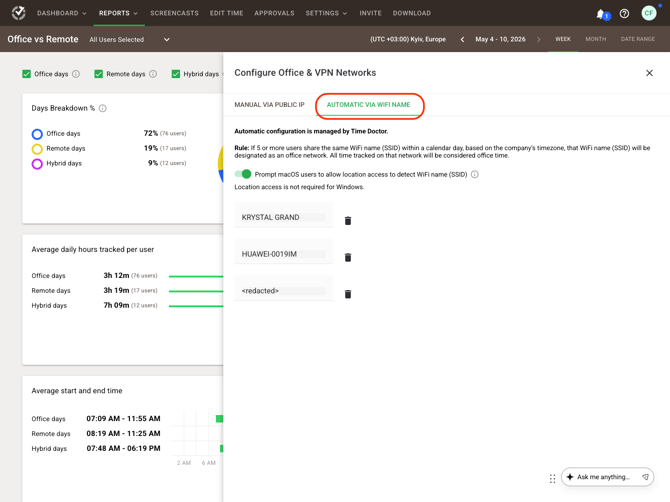
Automatic via Wi‑Fi Name
-
Open the Automatic via Wi‑Fi Name tab.
-
Wait until five or more Users connect using the same Wi‑Fi SSID.
-
Let the system automatically classify that Wi‑Fi network as an office network.
If a Wi‑Fi entry is deleted, classification updates the next day at midnight UTC.
Note: Only public IP addresses can be used. All other IP addresses are labeled remote. The report refreshes daily at midnight UTC.
How to read each widget
Read the report as a location comparison. Use each widget to answer a different question about office, remote, and hybrid work.
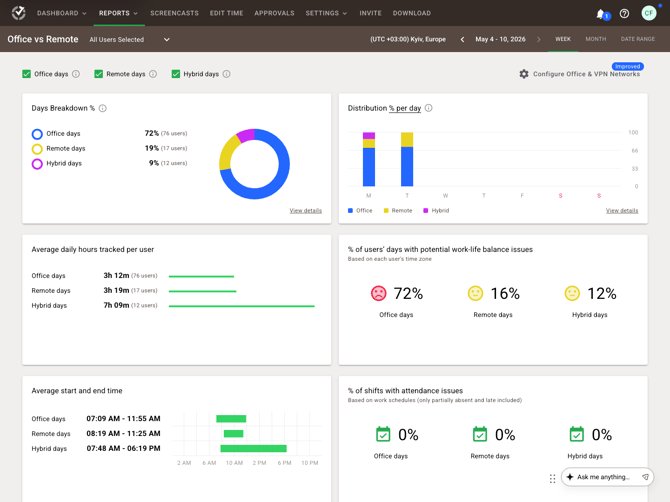
Users’ Location Breakdown %
Use this widget to see the percentage of Users working in each location for the selected time range.
How to read it:
Check whether the team is mostly office, remote, or hybrid during the selected period. Use the side panel to drill down by date.
Users’ Location Distribution % per Day
Use this widget to review the daily distribution of User locations.
How to read it:
Look for shifts in work patterns from day to day. Click a day to review User-level details.
Average Hours/User/Day
Use this widget to compare the average number of hours worked per User each day.
How to read it:
Compare whether office, remote, or hybrid days trend higher or lower in tracked hours.
Average Start and End Times
Use this widget to review typical start and end times by work location.
How to read it:
Check whether one location tends to start later, end later, or show wider schedule variation.
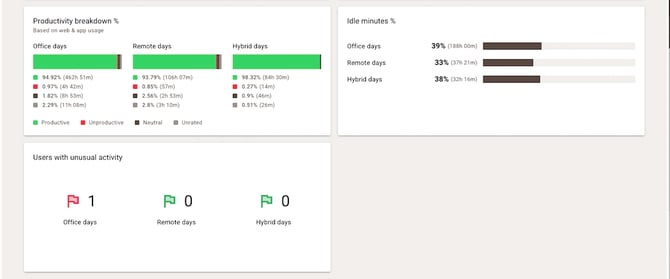
Productivity Breakdown %
Use this widget to compare the share of productive, unproductive, and neutral time by location.
How to read it:
Compare the mix, not just the total hours. A location with fewer hours may still show a stronger productive-time ratio.
% of users’ days with potential work-life balance issues
Use this widget to review the proportion of Users who may be at risk of work-life balance issues based on tracked behavior.
Thresholds:
-
-
0% — Satisfied: No Users are showing signs of imbalance.
-
>0% and <20% — Neutral: A few Users may need a quick check-in or closer attention.
-
≥20% — Dissatisfied: Several Users may need support.
-
How to read it:
Treat this as an early warning signal. Use it to identify patterns that may require follow-up, especially if one location consistently trends higher.
% of shifts with attendance issues
Use this widget to review the proportion of Users who show potential attendance problems.
Thresholds:
-
-
0% — Green: No attendance issues detected.
-
>0% and <30% — Yellow: A few Users may need a quick check-in or closer attention.
-
≥30% — Red: Several Users may need support.
-
How to read it:
Compare whether attendance concerns appear more often in office, remote, or hybrid work patterns.
Idle Minutes %
Use this widget to see the percentage of time with no mouse or keyboard activity, segmented by location.
How to read it:
Use this as context, not as a standalone judgment. Compare idle trends together with hours, productivity, and role expectations.
Users with Unusual Activity
Use this widget to identify Users with suspicious behavior patterns, such as unusually high input rates, segmented by location.
How to read it:
Review this widget as an exception list. It helps spot activity that may need validation rather than proving a problem on its own.
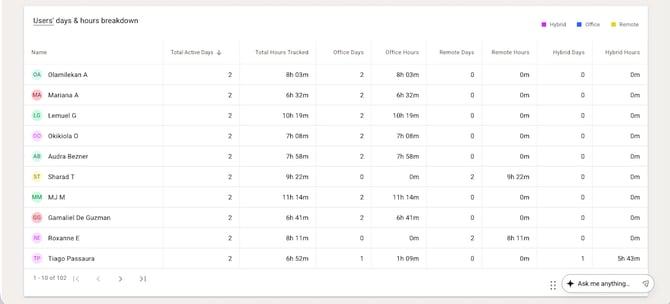
Groups’ Days Breakdown
Use this widget to review the percentage of office, remote, and hybrid days per group during the selected period.
How to read it:
Compare team patterns across the group hierarchy to see whether location trends differ by function or manager.
Practical tips for interpreting the report
-
Compare multiple widgets together before drawing conclusions.
-
Review hours, productivity, and attendance side by side for a fuller picture.
-
Check group-level trends before focusing on individual Users.
-
Use daily distribution views to identify whether a trend is consistent or driven by a few dates.
-
Confirm network configuration first if location data appears incorrect.
Common misunderstandings to avoid
“Remote” does not always mean offsite work was manually marked
The report classifies location based on configured network rules, not manual labels.
“Hybrid” means both locations on the same day
A User is classified as hybrid only when time is tracked in both office and remote locations on the same day, based on the company time zone.
Missing office configuration can affect classification
If office IPs or Wi‑Fi information are not configured correctly, work may be labeled remote.
Private or unsupported IPs are not used for office classification
Only public IP addresses can be used. All others are labeled remote.
The data is not real-time to the minute
The report refreshes daily at midnight UTC.
Historical coverage starts on a specific date
The Office vs Remote Report began tracking data on June 15, 2025.
Should there be any inconsistencies or concerns regarding the article, contact support@timedoctor.com for prompt assistance.