
Note: Projects & Tasks Report is available in all Time Doctor Subscription Plans and can be accessed by Owner, Admin, and Manager roles by default.
TL;DR
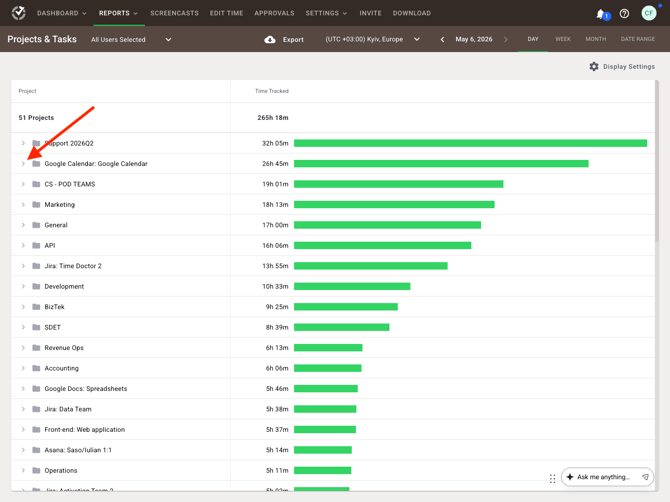
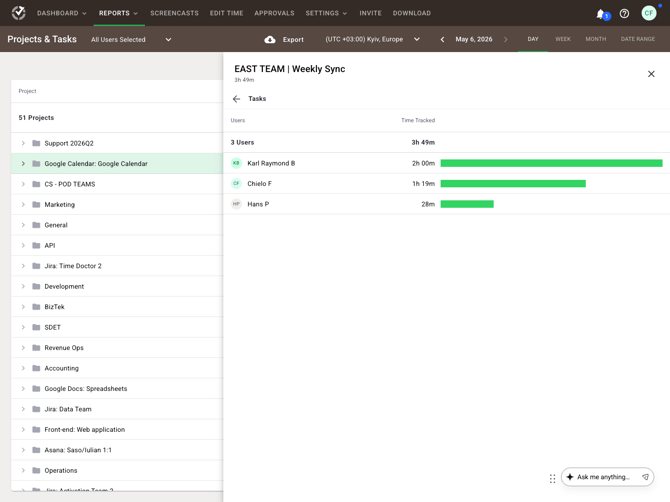
Use the Projects & Tasks Report to review the total time spent on each project and each task, for each user. Enable Projects & Tasks first, then open Projects & Tasks from Reports to review tracked time by project and task.
Use the Projects & Tasks Report to review the total time spent on each project and each task, for each user. This report is available only when project/task tracking is enabled.
What the report shows
The Projects & Tasks Report shows:
-
Total time spent on each project
-
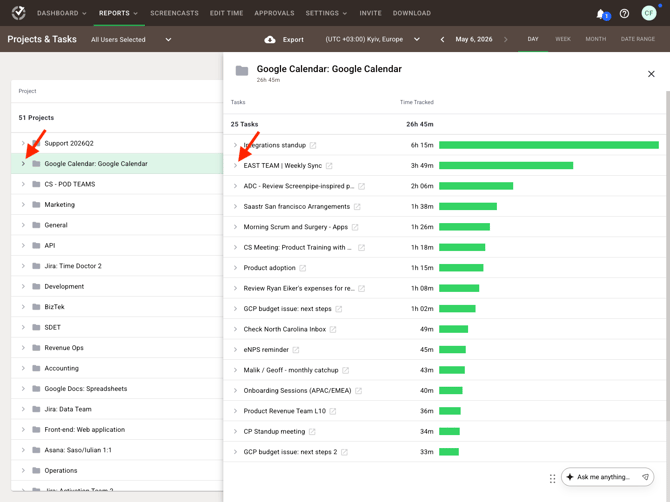
Total time spent on each task
-
Time for each user assigned to that tracked work
Before using the report
Enable Projects & Tasks before accessing the report. If Settings / Projects & Tasks is not visible, turn on Use projects & tasks in Settings / Company Settings.
Access and permissions
By default:
-
Owners have full account control.
-
Admins manage users, settings, projects, and schedules.
-
Managers manage assigned users’ work, schedules, and projects.
-
Regular Users can view their own tracked data.
For project and task setup specifically, the Projects & Tasks feature can be configured by Admin or Owner roles by default, and by the Manager role if permission to create projects is granted.
How to create projects and tasks
To create a project:
-
Go to Settings / Projects & Tasks.
-
If the page is not visible, enable Use projects & tasks in Settings / Company Settings.
-
Click Add Project.
-
Enter the project name.
To add tasks and users to a project:
-
Open the Tasks tab of the selected project.
-
Click Add task and enter a task name.
-
Open the People tab.
-
Assign access to the required users or groups.
How to access the report
-
Sign in to the Time Doctor web app.
-
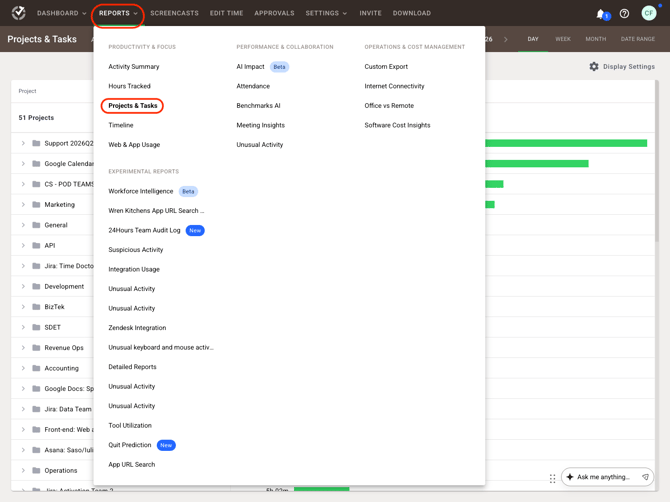
Open Reports.
-
Select Projects & Tasks.
-
Review tracked time by project and task.
How the report fits with other Time Doctor reports
Use the Projects & Tasks Report alongside other Time Doctor reports, including:
-
Attendance for schedule-based presence and absence review.
-
Hours Tracked for total tracked hours by day, week, or custom date range.
-
Timeline for start and end times, activity blocks, breaks, and working status.
-
Web & App Usage for websites and applications used during tracked time.
Best practices
-
Enable Projects & Tasks only when project-level or task-level tracking is needed.
-
Use the feature to gain insight into task duration and specific activities.
-
Consider the feature for client billing purposes where project- or task-based time visibility is required.
Related references
Should there be any inconsistencies or concerns regarding the article, contact support@timedoctor.com for prompt assistance.