
Note: Timeline Report is available in all Time Doctor subscription plans and can be accessed by all user access roles.
TL;DR:
Use the Timeline Report to review when team members started work, stopped work, how much time they logged, and what they worked on. Use the top-bar controls to filter users, change dates, switch between Day and Week views, adjust the displayed time zone, export data, and create notifications. Review the color legend to identify computer time, manual time, mobile time, breaks, and leave. Expand a row for a more detailed breakdown of a user’s day.
What the Timeline Report shows
Use the Timeline Report as a visual map of the workday. Review each team member’s tracked time, start and end times, activity blocks, breaks, and recent work patterns in one view.
At a glance, the report helps:
-
Review who started work and when
-
See who is currently active or recently tracked time
-
Compare work patterns across the day
-
Spot gaps, breaks, or unusual work hours
-
Open a more detailed breakdown for each user
Use the top-bar controls
The top bar in the observed interface includes several controls for adjusting the report view.

User filter
Use the filter on the left, shown as “All Users Selected” in the observed interface, to display:
-
-
One user
-
A specific team or group
-
All users
-
Use this filter to narrow the report to the people or department that need review.
Date picker
The report opens in a daily view by default. Use the date selector to move between days.
In the observed interface:
-
-
Use the ‹ and › arrows to move backward or forward by one day
-
Switch between DAY and WEEK views in the upper-right area
-
Use Week view to review a seven-day summary instead of a single day.
Time zone selector
The observed interface shows a time zone selector, such as UTC +08:00 Shanghai.
Use this setting to display the report in a single selected time zone. This is useful when reviewing distributed teams working across multiple regions.
Export
Use Export to download report data for payroll, billing, or record-keeping.
Create Notification
Use Create Notification to configure alerts directly from the report.
Examples include notifications for:
-
- Late starts
-
No tracked time
-
Other timeline-based conditions
Understand the color legend
The Timeline Report uses colors to show different types of tracked time.
Color meanings
|
Color |
Meaning |
|
🟢 |
Computer Time |
|
🟡 |
Manual Time |
|
🔵 |
Mobile Time |
|
⚪ |
Break Time |
|
|
Leave Time |
|
🟣 |
Meeting Time (Available only on Premium plans) |

A mostly solid green timeline during core hours generally indicates continuous computer-based work. Gaps between bars usually indicate periods with no tracked time.
Read the main table
Each row in the Timeline Report represents one team member.
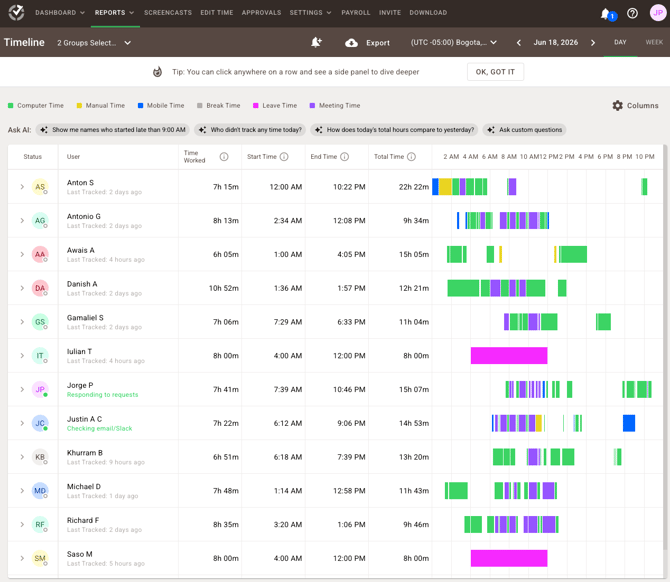
Status
In the observed interface, the leftmost dot on the avatar indicates current status.The observed view shows:
-
Green dot — currently working or online
-
Gray or empty dot — offline or not currently tracking
User
The User column shows the person’s name and, in the observed interface, may also show:
-
The last task or project worked on
-
A recent activity label such as “Last Tracked: 55 minutes ago”
-
Labels such as “User Not Activated” or “Never Tracked Time”
These labels help distinguish between inactive users, invited users, and users who simply did not work on the selected day.
Time Worked
Use Time Worked to review the total tracked time for the selected day.
This total can include:-
Computer time
-
Manual time
-
Mobile time
-
Break or leave entries shown in the report view
Start Time
Use Start Time to identify when the user first tracked time that day.
End Time
Use End Time to identify when the user last tracked time.
If many users show the same current end time in the observed interface, that usually indicates the report is updating in real time while those users are still active.
Timeline bar
Use the visual timeline bar to review when work happened during the day.
This helps identify:
-
Morning-only, afternoon-only, or split schedules
-
Long gaps in the middle of the day
-
Very early or late work hours
Expand a row for more detail
Select the expand arrow next to a user to open a more detailed breakdown of that person’s day.
In the observed interface, the expanded panel includes:
-
A color-coded timeline of activity periods
-
An Overview summary with Worked, Started, and Finished
-
A detailed table with:
-
Start time
-
End time
-
Duration
-
Project
-
Task
-
Reason
-
In the observed interface, some yellow-highlighted rows indicate idle time that was automatically added based on account settings.
This report also shows an ↗ external link icon next to the user name, which appears to open that user’s individual dashboard.
Use Ask AI in the observed interface (Available only for Beta customers)
The observed interface also shows an Ask AI area above the table with preset questions and a custom question box.
Example prompts shown in the observed interface include:
“Show me names who started late than 9:00 AM”
“Who didn’t track any time today?”
“How does today’s total hours compare to yesterday?”
Use this area, where available in the current interface, to speed up review of larger teams.
Customize columns
Use the Columns gear in the upper-right area of the table to show or hide columns.
For example, hide End Time or other fields to simplify the report view.
Why the Timeline Report is useful
The Timeline Report helps:
-
Review team activity at a glance
-
See what users worked on throughout the day
-
Monitor current activity using the status indicators shown in the interface
-
Review distributed teams in one selected time zone
-
Spot late starts, long gaps, or no tracked time more quickly
-
Open a more detailed breakdown without leaving the page
-
Export data for payroll, billing, or audits
FAQ
Why does a user’s Start Time show 12:00 a.m.?
- This usually means tracking began at midnight. This can happen when a tracker continues running from the previous day or when a user works an overnight shift.
- It does not mean continuous work from midnight onward. Use the timeline bars to review the actual periods of tracked activity.
Why does a user show 3h 38m worked but a Start Time of 12:00 a.m. and an End Time of 5:51 p.m.?
- Time Worked shows only tracked activity. It does not include the full span between the first and last timestamps when gaps exist.
- A user may have a very early start time and a later end time but only a few short tracked sessions during that period.
What is the difference between Start Time, End Time, and Time Worked?
Start Time = the first tracked moment of the day
End Time = the last tracked moment of the day
Time Worked = the total tracked time between those points, excluding gaps with no tracked activity
Why do some rows show 0m and 00:00?
In the observed interface, this usually means one of the following:
The user did not work on the selected day
The user has never tracked time
The user has not activated the account yet
Look for labels such as “User Not Activated” or “Never Tracked Time” when they appear in the interface.
Why do many users show the same End Time?
If several users show the same current end time, that usually means the report is updating while those users are still actively tracking time.
What does a yellow-highlighted row mean in the detail view?
In the observed interface, yellow-highlighted rows indicate idle time that was automatically added based on the company’s idle-time settings.
Should there be any inconsistencies or concerns regarding the article, contact support@timedoctor.com for prompt assistance.