
Note: Unusual Activity Report is available for customers with Premium Subscription and as an add-on for Basic and Standard plans. It can be accessed by Owners and Admins for companies with 10 or fewer Users, and by Owners, Admins, and Managers for companies with more than 10 Users.
TL;DR
Use the Unusual Activity Report to review flagged keyboard and mouse behavior that may look unusual during tracked work time. Check the flagged pattern, review the selected User and date range, compare findings with other reports, and avoid using the report alone as proof of misconduct.
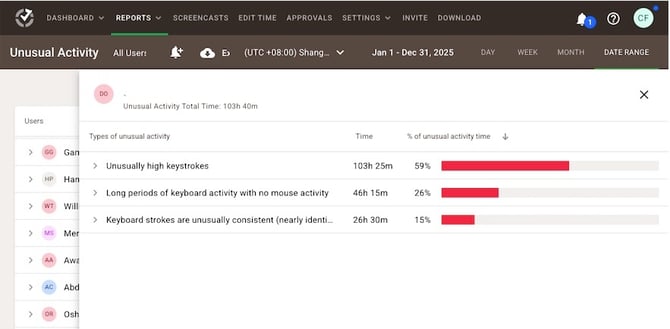
The Unusual Activity Report helps identify behavior patterns in tracked work time that may be outside the norm. It reviews keyboard and mouse activity and surfaces cases that may deserve a closer look.
Access the report from Reports / Unusual Activity.
How the Report Works
The report analyzes three types of activity:
-
Mouse clicks
-
Mouse movements
-
Keyboard strokes
The analysis is done in calendar 30-minute periods for tracked time.
How to Read the Results
When reviewing a flagged result, focus on what pattern was detected, when it happened, and whether other reports support the same conclusion.
Use this approach:
Check the flagged behavior type to understand what the system detected.
Review the User and selected period to narrow the investigation to the relevant work session.
Look for repeated patterns rather than drawing conclusions from one isolated flag.
Compare with other Time Doctor data before making a decision, since the report is intended to highlight unusual behavior, not prove wrongdoing.
What Each Flag Means
Unusually High Keystrokes
This flag identifies typing activity that appears excessively high or out of the ordinary.
How to interpret it:
Review whether the User was doing work that naturally involves sustained typing, such as writing, coding, transcription, or documentation. Treat the flag as a signal for review, not a final conclusion.
Mouse Moves Without Clicks
This flag appears when mouse movement continues for a prolonged period without associated clicks.
How to interpret it:
Consider whether the User may have been reading, reviewing content, or using a workflow that involves movement without frequent selection. Also consider whether software or hardware behavior could affect the result.
Unusually High Mouse Clicks
This flag identifies an unusually high amount of clicking activity.
How to interpret it:
Check whether the User was working in tools or tasks that involve repeated clicking. If the pattern looks extreme or repetitive, review more context before escalating.
Inconsistent Mouse Moves or Keyboard Strokes
This flag identifies patterns of unusually consistent mouse movements or keyboard strokes, which may suggest automated activity.
How to interpret it:
Review whether the behavior looks mechanically repetitive across the flagged period. The report may surface patterns that are worth checking, but it does not confirm the use of automation by itself.
Long Keyboard Activity With No Mouse
This flag highlights extended periods of keyboard activity without mouse interaction.
How to interpret it:
Consider whether the User was doing keyboard-heavy work. Some roles naturally involve long typing sessions with little mouse use.
How Accurate the Report Is
The report shows 30-minute periods that include typical keyboard and mouse activity patterns.
A flagged case may be caused by:
-
work styles that differ from what is typical
-
hardware or software peculiarities
-
software that simulates keyboard or mouse activity
For that reason, review the report together with other information about the User’s work. The report cannot be used as proof of cheating and may not capture every suspicious case.
Best Practices for Reading the Report
Use the report as an indicator, not a final judgment.
Follow these best practices:
-
Review the full context before taking action.
-
Compare findings with other reports, especially if the goal is to understand overall work behavior.
-
Look for patterns across time, not just one flagged interval.
-
Use role context when evaluating whether the activity seems expected.
-
Avoid assuming intent based on one report alone.
What the Report Does Not Show
The report does not capture cases of very low activity. For low-activity review, check the Activity Summary Report instead.
The algorithm also does not base its analysis on which applications were used. It focuses on actual behavior because applications or scripts can be manipulated or run in the background.
Filter, Notify, and Export
-
Use the report filters to review individual Users and a specific time period.
-
If ongoing monitoring is needed, Owners, Admins, and Managers can create notifications to stay informed about unusual behavior activities.
-
Export the report in CSV or XLS format for further analysis or sharing.
FAQ
Why does the report not consider the applications used?
The algorithm focuses on actual behavior rather than the applications or scripts launched. This helps reduce reliance on data that could be manipulated by scripts or physical devices.
Does the report capture low activity?
No. Very low activity is not captured in this report. Review the Activity Summary Report for that type of insight.
Does the UAR add-on include past data?
Yes. After purchasing the UAR add-on, access is available for all previously recorded data included in that feature.
Should there be any inconsistencies or concerns regarding the article, contact support@timedoctor.com for prompt assistance.