
Note: Rippling HRIS Integration is available for purchase across all Time Doctor subscription plans and is accessible to users with Admin access.
This integration is available only to interactive users.
TL;DR:
- Connect Rippling HRIS via Settings > Integrations > Native tab
- Configure filters and enable User Sync and/or Time Off Sync
- Sync runs every 12 hours
- Data flows one-way from Rippling HRIS to Time Doctor
- Matching is based on email addresses
Connect Rippling HRIS with Time Doctor to automatically sync Users and Time Off records. Eliminate manual updates and maintain accurate workforce data.
Enable the integration to:
- Automatically add and manage Users
- Sync approved Time Off requests
Note: This is a one-way sync. Data flows from Rippling HRIS to Time Doctor only.
Available Sync Options
Enable one or both sync types:
Before Getting Started
Ensure the following:
- Rippling HRIS is used to manage HR data and Time Off
- Time Doctor is used for time tracking
- Employee email addresses match in both systems
- Only active and fully onboarded employees are included
- Admin access is available in both platforms
How to Set Up the Integration
- Go to Settings > Integrations > Native tab
- Locate Rippling HRIS Integration
- Purchase the Integration and click Connect
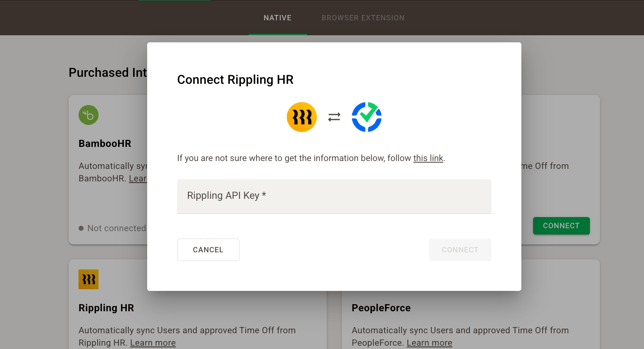
- Enter the Rippling HRIS API Key when prompted
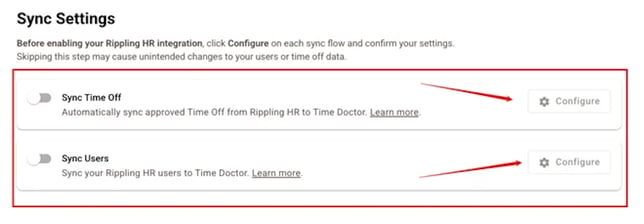
- Configure Filters before enabling User Sync and/or Time Off Sync
- Click Save
- Enable User Sync and/or Time Off Sync
Part 1: User Sync
Overview
Keep the workforce directory up to date automatically. Sync Users based on their status in Rippling HRIS.
How It Works
- Sync runs every 12 hours
- Changes in Rippling HRIS trigger updates in Time Doctor
- Actions include adding, archiving, or reactivating Users
|
Employee Status in Rippling HRIS |
What Happens in Time Doctor |
|
Active / Employed |
Employee is created in Time Doctor |
|
Inactive / Terminated |
Employee is archived in Time Doctor |
Filter Synced Users
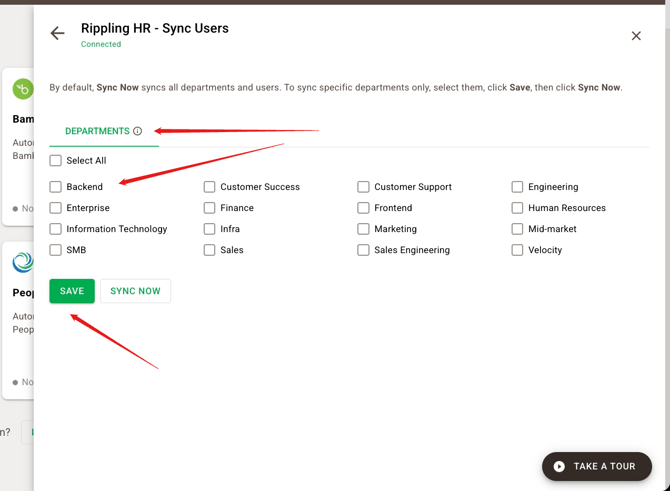
Limit sync scope during setup:
- Sync all Departments
- Sync selected Departments
If no Users exist in Time Doctor:
- Select Department(s)
- Click Save
- Click Sync Now to import existing Users
To sync only newly added Users:
- Select Department(s)
- Click Save
- Close setup without running Sync Now
Important Notes
- Users are matched by email address
- Select Departments to control sync scope
- Existing Users are not duplicated during full sync
- New Users in Rippling HRIS are automatically added
- Newly created Departments must be manually selected to be included in the sync
- Email updates in Rippling HRIS must be updated manually in Time Doctor
- User name changes in Rippling HRIS sync automatically to Time Doctor
Note: New Users created via integration are set as billable Users by default.
Part 2: Time Off Sync
Overview
Automatically sync approved Time Off requests from Rippling HRIS into Time Doctor.
How It Works
- Sync future approved Time Off after activation
- Sync updates every 12 hours
- Contact support to sync historical records
Important: Only approved requests are synced.
Time Off Mapping
Supported Time Off types from Rippling HRIS:
|
Time Off Type in Rippling HRIS |
How It Appears in Time Doctor |
|
Full-day Time Off |
Mapped as a full 8-hour absence (9:00 AM to 5:00 PM) in your Time Doctor company's timezone |
|
Time-based Time Off (e.g., 9 AM – 2 PM) |
Mapped to the exact start and end times specified |
|
Partial-day Time Off (e.g., half day) |
Hours are mapped starting from 9:00 AM, based on a standard 9:00 AM – 5:00 PM schedule |
Duplicate Time Off Handling
Configure how duplicate time off records are handled:
|
Option |
What It Does |
Best For |
|
Skip (Recommended) |
Keeps the existing Time Doctor Time Off and ignores the incoming Rippling HRIS entry. |
When Time Doctor is your source of truth for Time Off requests |
|
Replace |
Deletes the existing Time Doctor Time Off and replaces it with the Rippling HRIS data. |
When Rippling HRIS should always take priority |
|
Merge |
Adds the Rippling HRIS Time Off alongside the existing entry. Identical time slots are deduplicated automatically. |
When employees may have Time Off from multiple sources |
Important:
- Custom leave type mapping is not supported
- Default mapping uses paid/unpaid categories
- Updates to synced records reflect in Time Doctor
- Do not submit Time Off directly in Time Doctor when integration is active

Day-to-Day Usage
- Submit and approve Time Off in Rippling HRIS
- Updates appear in Time Doctor within 12 hours
- Manage employee status changes in Rippling HRIS
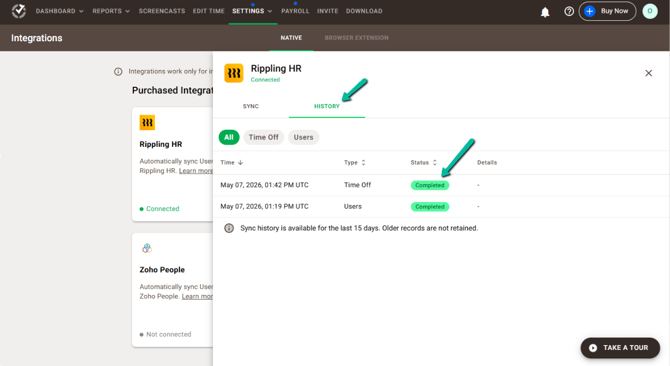
Sync History
Navigate to the History tab to review your sync history:
Disabling the Integration
- Turn off Sync Users and/or Sync Time Off to pause syncing
- Click Remove from Account to fully remove integration from your account and stop future billing
Important: Existing data remains in Time Doctor.
Troubleshooting
Users Not Syncing
- Confirm the employee is active and onboarded
- Verify matching email addresses
- Allow up to 12 hours for sync
Time Off Not Syncing
- Ensure the request is approved
- Confirm supported date range
- Verify email match
Time Off Not Overwriting
- Check the Duplicate Time Off Handling setting
Incorrect Time Off Hours
- Verify start/end times in Rippling HRIS
- Default time is 9:00 AM – 5:00 PM
- Adjust fractional hours manually if needed
Should there be any inconsistencies or concerns regarding the article, contact support@timedoctor.com for prompt assistance.