
Note: Rippling Payroll Integration is available for purchase across all Time Doctor subscription plans and is accessible to users with Owner and Admin access.
TL;DR:
- Connect Rippling Payroll via Settings > Integrations > Native tab.
- Select a date range and choose users or groups.
- Click Sync Now to send Time Doctor timesheets directly into Rippling Payroll.
- Review each sync in the History tab.
- Use this as a one-way sync from Time Doctor to Rippling Payroll.
Connect Rippling Payroll with Time Doctor to sync employee timesheets directly into the payroll system. Eliminate manual data entry and keep payroll processing aligned with the latest tracked time.
Enable the integration to:
- Sync Time Doctor timesheets to Rippling Payroll
- Filter syncs by date range, individual users, or groups
Note: This is a one-way sync. Data flows from Time Doctor to Rippling Payroll only.
Before Getting Started
Ensure the following:
-
- Use Time Doctor for time tracking.
- Use Rippling Payroll to process payroll.
- Confirm Admin access in both platforms.
- Purchase Rippling Payroll Integration.
How to Set Up the Integration
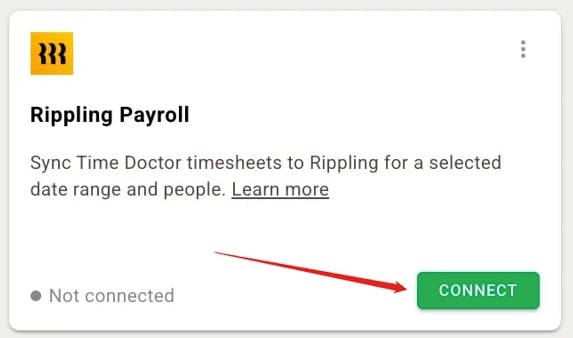
- Go to Settings > Integrations > Native tab.
- Locate Rippling Payroll Integration
- Purchase the integration and click Connect
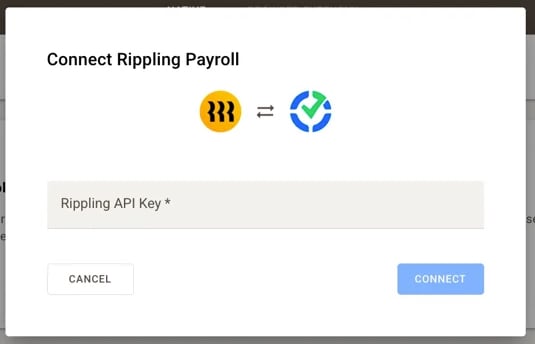
- Enter your Rippling Payroll API key when prompted and click Connect
Syncing Timesheets
Sync Time Doctor timesheets directly into Rippling Payroll for payroll processing. Control which records are included by selecting a date range, users or groups before each sync.
How It Works
-
- Trigger each timesheet sync manually
- Select the required date range, users or groups before syncing
- Send matching timesheet data from Time Doctor to Rippling Payroll.
How to Sync Timesheets
-
- Go to Settings > Integrations > Rippling Payroll.
- Click Configure.
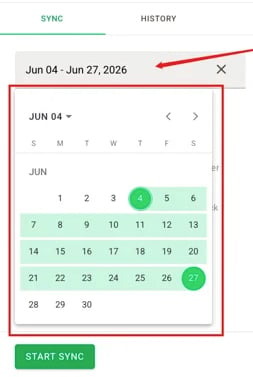
- Set the Date Range for the timesheets to sync.
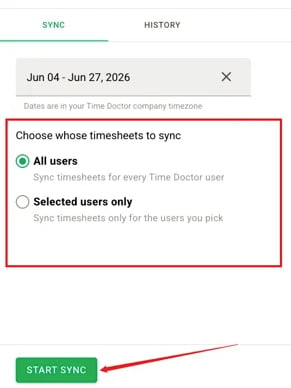
- Select Users or Groups.
- Click Sync Now.
Filter Options
|
Filter |
Description |
|
Date range |
Choose a start and end date for the timesheet sync. Note: Dates are in your Time Doctor Company time zone. |
|
Users |
Select individual users to include in the sync. |
|
Groups |
Select one or more groups to include in the sync. |
What Gets Synced
Time Doctor sends the following data to Rippling Payroll for each included user within the selected date range:
- Total hours tracked
- Breakdown by day
Note: Only time tracked in Time Doctor is included. Manual time entries follow the same rules as tracked time.
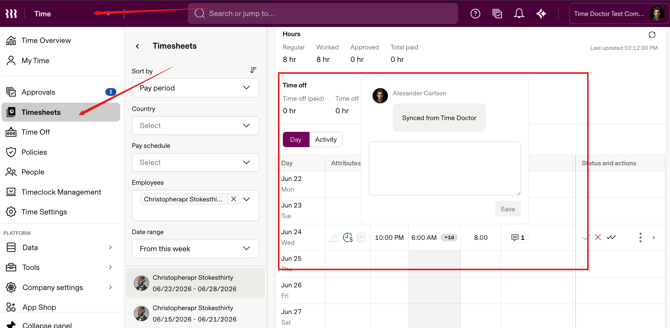
Day-to-Day Usage
- Track time in Time Doctor as usual.
- At the end of each pay period, go to Settings > Integrations > Rippling Payroll.
- Set your date range, select users or groups, and click Sync Now.
- Verify the synced data in Rippling Payroll before processing payroll.
Sync History
Open the History tab to review past syncs, including each sync date and status.
Disabling the Integration
Click Remove from Account to fully disconnect the integration and stop future billing.
Important: Removing the integration does not delete any timesheet data already synced to Rippling Payroll.
Troubleshooting
Timesheets Not Appearing in Rippling Payroll
- Confirm that the selected date range covers the expected pay period.
- Verify that the correct users or groups were selected.
- Check the History tab for sync errors.
- Allow a few minutes after syncing before reviewing data in Rippling Payroll.
Incorrect Hours in Rippling Payroll
- Confirm that the date range is correct.
- Check whether any time entries were edited after the last sync.
- Run the sync again using the same date range to push updated data.
Sync Fails to Complete
- Verify that the Rippling Payroll API credentials are still valid.
- Reconnect the integration if the credentials have expired.
- Contact support@timedoctor.com if the issue persists
Should there be any inconsistencies or concerns regarding the article, contact support@timedoctor.com for prompt assistance.