
TL;DR:
Tracked time may remain locally available on a mobile device or desktop app while it is waiting to sync. Check the device where the time was tracked, restore connectivity, and keep the mobile app open and connected while pending entries upload. For desktop tracking, allow the normal synchronization interval and restart the app if needed. Do not clear cache or reinstall the app while unsynced time may remain. Clear cache only when following the specific Token Expired troubleshooting steps. If local time has already been erased, ask an authorized editor to add or edit the missing time, then have the direct Manager approve it when approval is required.
Use this guide when tracked time is not appearing in the Time Doctor Dashboard or Reports. The steps cover both mobile and desktop tracking and distinguish between delayed synchronization, connectivity problems, known Time Doctor incidents, and time that is no longer available locally.
Mobile Application
Desktop Application
Understand How Tracked Time Syncs
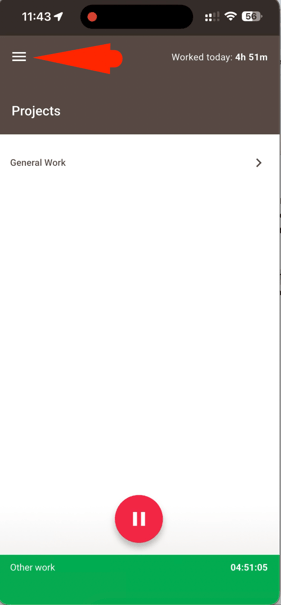
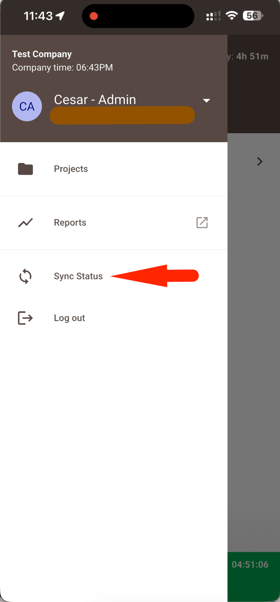
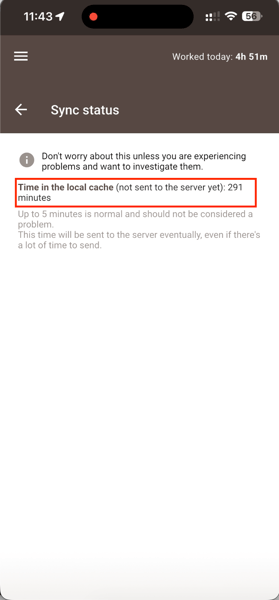
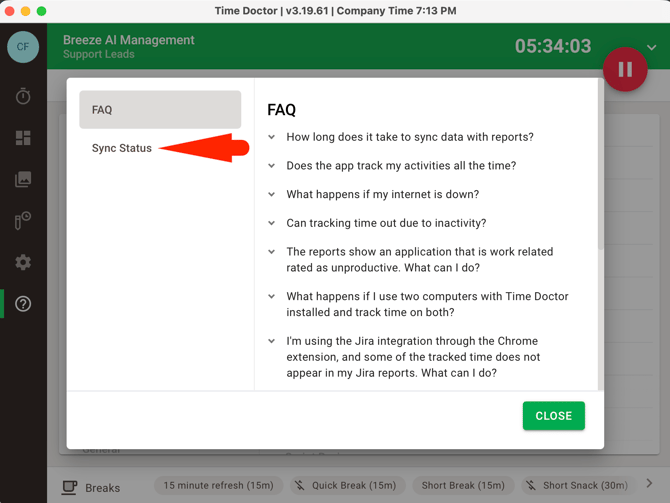
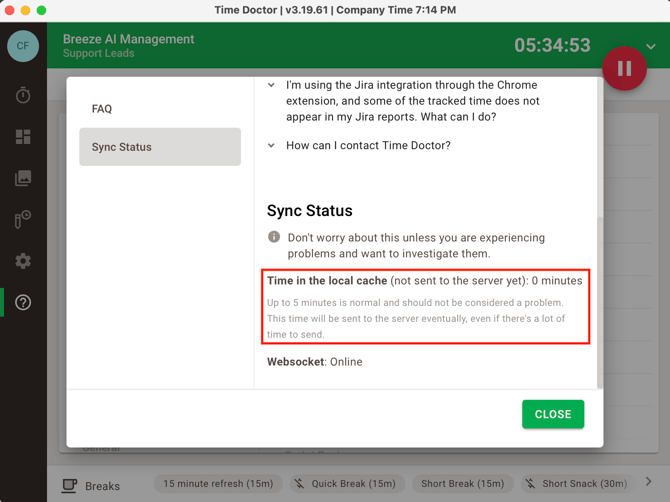
- Mobile app: Time can remain stored on the device while the device is offline or the upload is pending. Reconnect the device to the internet, open the app, and check Sync status while the app remains open.
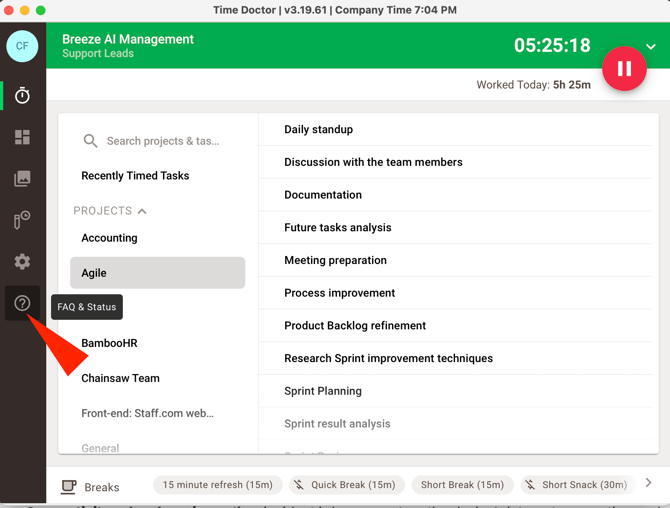
- Desktop app: Tracked time may take approximately three to five minutes to appear online. Desktop totals and online Reports may differ temporarily while synchronization is pending.
- Known Time Doctor incident: If Time Doctor has identified an incident, check the related status updates and preserve the local entries while the issue is being resolved.
- Connectivity or local app issue: If no incident is known, restore the device’s internet connection and check for local app, firewall, antivirus, or authentication issues that may prevent synchronization.
Follow This Troubleshooting Path
1. Check Whether the Time Is Still Available Locally
Open the mobile app or desktop app on the device where the time was tracked. Check whether the missing entries are still visible locally or whether the app shows pending synchronization.
Do not clear the app cache or uninstall and reinstall the app while unsynced time may remain. Clearing cache can erase locally stored data, including unsynced tracked time, and that data cannot be retrieved automatically afterward.
Clear cache only when following the specific Token Expired troubleshooting instructions. Before clearing cache, confirm whether any unsynced time remains and preserve the available cache files for Support when applicable.
2. Keep Locally Available Time Safe
If the entries are still available locally:
-
- Keep the mobile app open and connected to the internet so pending entries can upload.
- Continue tracking through the mobile or desktop app while waiting for synchronization.
- If a known Time Doctor incident is affecting synchronization, follow the incident updates and wait for service recovery.
- If no incident is known, restore connectivity and review any authentication, firewall, or antivirus restrictions that may block synchronization.
3. Restart the Desktop App When Desktop Time Is Missing
For missing desktop time, follow this sequence:
-
- Sign out of the desktop app.
- Close the desktop app completely.
- Reopen the app and sign in.
- Check the tracked hours again.
- Allow approximately three to five minutes for the desktop time to synchronize online.
4. Submit Cache Files Before Taking Further Action
If the tracked time remains locally available but does not appear in the Dashboard or Reports, submit the available cache files to Support before clearing cache or reinstalling the app.
Use Help > Report an issue when that option is available, or follow the documented cache-file submission process for the relevant device. Send the cache files to support@timedoctor.com and include the affected dates, approximate times, device type, and a description of the missing entries.
5. Restore Time That Is No Longer Available Locally
If cache was cleared or the app was reinstalled before unsynced time was submitted, the locally stored entries may no longer be available and cannot be restored automatically. Gather the exact dates, start and end times or durations, User name, and device used for tracking.
Ask an authorized editor to add or edit the missing time through Edit Time:
-
- A User can edit their own time when the required access is enabled.
- A Manager can edit time for the Users they manage.
- An Admin or Owner can edit time for all Users when Can edit time is enabled.
If manual-time approval is required, ask the direct Manager to approve the added or edited time. Pending manual time does not appear in Reports until it is approved, and Dashboard or Reports totals may not update immediately.
Avoid These Common Mistakes
❌ Do not clear cache to troubleshoot ordinary synchronization delays.
❌ Do not uninstall and reinstall the app while unsynced time may remain.
❌ Do not assume that a temporary difference between desktop totals and online Reports means the time is permanently missing.
❌ Do not request a manual adjustment before checking whether the entries are still available locally or whether Support can investigate the cache files.
❌ Do not assume that only an Admin or Owner can make the adjustment; an authorized Manager may be able to edit time for the Users they manage.
Contact Support
If the time remains missing after following these steps, contact Time Doctor Support and provide the affected dates, times, device or app used, synchronization status, and any available cache files so the issue can be investigated.