
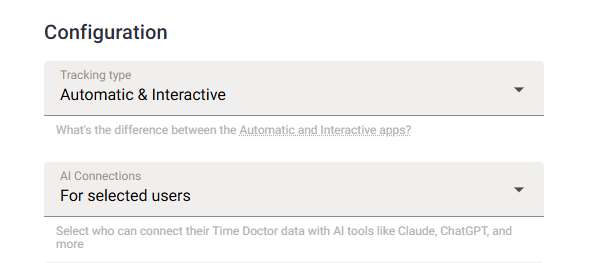
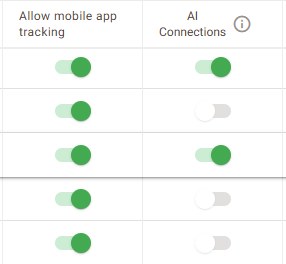
Note: Time Doctor MCP is available on all Time Doctor subscription plans. Owners and Admins enable it in the Company Settings page. Once enabled, Owners, Admins, and Managers can connect their own AI tools in the AI Connections page.
TL;DR:
- Two different products share the Copilot name, and each connects to Time Doctor differently.
- GitHub Copilot in VS Code follows a separate guide: Connect Your Code Editor to Time Doctor.
- GitHub Copilot in Visual Studio, JetBrains, Xcode, or Eclipse, and the GitHub Copilot CLI, connect by adding the Time Doctor MCP server URL directly.
- Microsoft 365 Copilot is set up by an administrator in Copilot Studio, not by individual users.
- Copilot in Edge and the personal Microsoft Copilot app cannot connect to custom MCP servers.
- An API key is available as an alternative to browser sign-in for tools that cannot open one.
Which Copilot Product Is in Use?
|
What Is Being Used |
How to Connect |
|---|---|
|
GitHub Copilot in Visual Studio, JetBrains, Xcode, or Eclipse |
Set it up directly. See GitHub Copilot in Your Editor below. |
|
GitHub Copilot CLI |
Set it up directly. See GitHub Copilot CLI below. |
|
Microsoft 365 Copilot, the assistant in Teams, Office, and the Copilot app |
An administrator sets it up. See Microsoft 365 Copilot below. |
|
Copilot in Edge, or the personal Microsoft Copilot app |
Not supported. These cannot connect to custom MCP servers. Use one of the options above instead. |
Before Starting
- Prepare the login of an Owner, Admin, or Manager.
- Confirm that an Owner or Admin has enabled Time Doctor MCP in the Company Settings page.
- Use the Time Doctor server URL, which is the same everywhere: https://api2.timedoctor.com/api/2.0/mcp/mcp
A Note on GitHub Copilot Plans
Add the Time Doctor MCP with no approval needed on Copilot Free, Pro, Pro+, and Max.
On Copilot Business and Copilot Enterprise, the organization controls this setting. An administrator must switch on MCP servers in Copilot policy before anyone can add a server. If the option is missing, or the server never connects, this is almost always why.
GitHub Copilot in an Editor
These steps cover Visual Studio, JetBrains IDEs, Xcode, and Eclipse. For VS Code, see Connect Your Code Editor to Time Doctor instead.
- Open the editor's MCP configuration file. In most editors, reach this from the Copilot chat panel's settings or tools menu.
- Add Time Doctor, then save:
{"servers": {"timedoctor": {"url": "https://api2.timedoctor.com/api/2.0/mcp/mcp"}}} - Sign in with Time Doctor. In Visual Studio, click Auth on the line above the server entry in the config file, complete sign-in in the browser, then click Allow access. In other editors, Copilot prompts for authentication on first connection.
- Open Copilot Chat in agent mode and ask about Time Doctor data.
GitHub's own guide: Extend Copilot Chat with MCP.
GitHub Copilot CLI
Copilot CLI reads the same server configuration and prompts for sign-in on first connection to Time Doctor. Add the entry above, then start a session and ask about the data.
For a different command-line tool: Claude Code, Codex CLI, and Gemini CLI all connect to Time Doctor too. See Connect Command-Line AI Tools to Time Doctor.
Microsoft 365 Copilot
Microsoft 365 Copilot cannot connect to Time Doctor on its own. An administrator builds an agent in Copilot Studio that uses Time Doctor, then publishes it to the organization. This section is for that administrator.
- In Copilot Studio, open the agent and go to the Tools page.
- Click Add a tool, then New tool, then Model Context Protocol.
- Enter Time Doctor as the server name, add a short description, and paste the Time Doctor server URL.
- For authentication, choose OAuth 2.0, then Dynamic discovery. Time Doctor publishes what Copilot Studio needs, so no endpoints, client ID, or client secret need to be entered by hand.
- Click Create.
- On the Add tool dialog, choose Create a new connection, complete the Time Doctor sign-in, then click Add to agent.
- Publish the agent to make it available to Microsoft 365 Copilot users.
Time Doctor uses the streamable transport, which is the type Copilot Studio supports. Each person who uses the agent signs in with their own Time Doctor account, so each sees only the data their own Time Doctor role allows.
Microsoft's own guide: Connect Your Agent to an Existing MCP Server.
Try the First Question
Once connected, paste this:
"Help me get started with my Time Doctor data. Ask me about my goals and build my first report."
Advanced: Connect with an API Key
If a tool cannot open a browser sign-in, use an API key instead. Create one in Time Doctor under the AI Connections page.
In GitHub Copilot's configuration file, add the key inside a request headers block:
"timedoctor": { "url": "https://api2.timedoctor.com/api/2.0/mcp/mcp", "requestInit": { "headers": { "x-api-key": "YOUR_API_KEY" } }}
In Copilot Studio, choose API key instead of OAuth, set the type to Header, and use x-api-key as the parameter name.
Treat the key like a password: keep it private, do not share it, and revoke it any time from the AI Connections page. For a full walkthrough, see Connect Autonomous AI Agents to Time Doctor.
Troubleshooting
|
Problem |
Fix |
|---|---|
|
There is no option to add an MCP server, or the server never connects |
On Copilot Business and Copilot Enterprise, an administrator must switch on MCP servers in Copilot policy. Ask whoever manages the GitHub organization. |
|
The editor rejects the configuration |
GitHub Copilot uses servers as the section name, not mcpServers. Headers go inside a requestInit block, not at the top level. |
|
The browser sign-in page does not open |
Check that the browser did not block the pop-up, then connect again. In Visual Studio, click Auth above the server entry in the config file. |
|
Sign-in fails, or a permissions error appears |
Check with a Time Doctor Owner or Admin that Time Doctor MCP is enabled in the Company Settings page, and that the account's role is Owner, Admin, or Manager. |
|
Copilot answers without using Time Doctor data |
Name it directly, for example: "Using Time Doctor, show hours tracked this week." Confirm Copilot Chat is in agent mode. |
|
Time Doctor is missing in Microsoft 365 Copilot |
Check with an administrator that the Copilot Studio agent has been published to the organization and that access has been granted. |
|
Time Doctor does not appear in Copilot in Edge or the Microsoft Copilot app |
Those versions of Copilot cannot connect to custom MCP servers. Use GitHub Copilot or Microsoft 365 Copilot instead. |
Disconnecting
- GitHub Copilot: remove the Time Doctor entry from the configuration file and restart the editor.
- Microsoft 365 Copilot: have an administrator remove the Time Doctor tool from the agent in Copilot Studio, or unpublish the agent.
- Access can also be ended from the Time Doctor side in the AI Connections page, which immediately stops that tool from reading the data.
Next Step
See Getting Started: What to Ask Your Time Doctor MCP Connection.
Should there be any inconsistencies or concerns regarding the article, contact support@timedoctor.com for prompt assistance.