
Note: Interactive and Automatic desktop tracking are available in all Time Doctor subscription plans and can be accessed by all user access roles. Automatic Tracking Times can be configured by Owners and Admins in Automatic Only or Mixed companies. The Automatic App is not available in the European Union.
TL;DR:
Choose the Interactive Desktop App for visible start, pause, and stop controls. Choose the Automatic App for background tracking on work-only devices. Set Automatic Tracking Times to limit when the Automatic App captures activity, then review the Timeline Report for tracked time and gaps.
What Are the User Tracking Modes in Time Doctor?
Time Doctor offers two desktop tracking experiences: Interactive and Automatic. Companies can choose an Interactive, Automatic, or Mixed setup to match different teams’ needs. The Automatic App was previously called the silent app.
What Is Interactive Tracking?
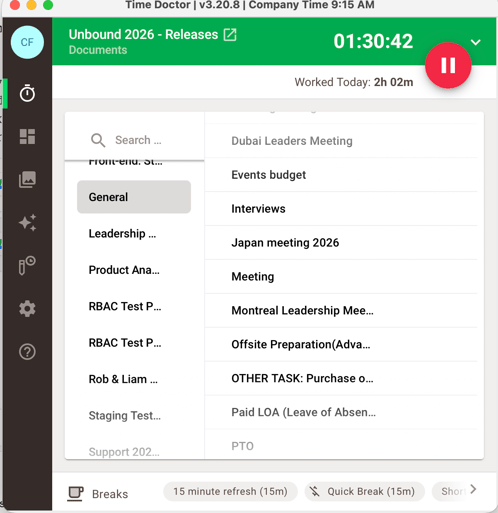
Use the Interactive Desktop App to start, pause, and stop tracking from a visible app interface. Select a task when task tracking is enabled. If tracking remains paused or stopped, computer activity during that period is not tracked. Review available auto-start and reminder settings to help prevent missed time.
What Is Automatic Tracking?
Use the Automatic App for background tracking without a visible timer or manual pause control. The app starts tracking computer activity automatically when the computer is on and the app is running. It is best suited to managed, work-only devices. Do not install both desktop app versions for the same user on the same computer; this can create duplicate entries.
Privacy note: Review company policy and applicable privacy requirements before deploying background tracking. The Automatic App is not available in the European Union.
Frequently Asked Questions
Can Automatic Tracking Times Be Set for a Company?
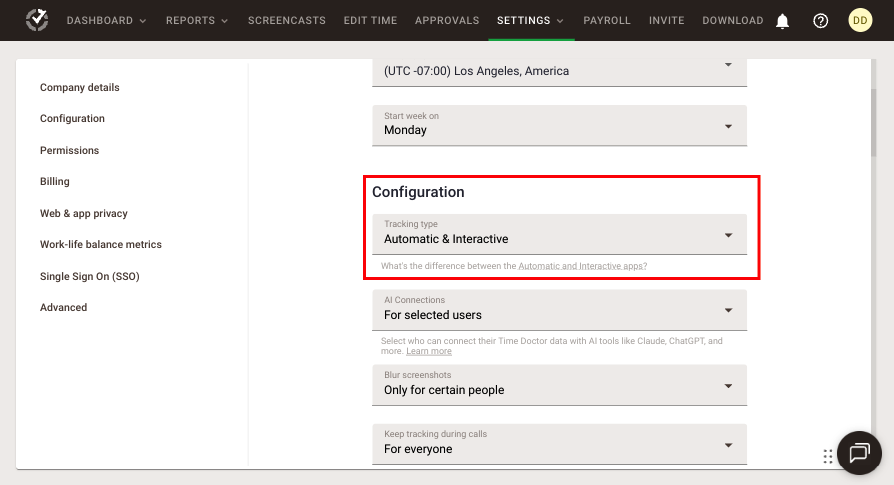
Yes. Set a company-wide schedule for the Automatic App. This schedule does not restrict Interactive Desktop Apptracking.
- Go to Settings / Company Settings / Configuration.
- Find Automatic Tracking Times and select Track during specific times.
- Choose the days and set each day’s start and end times.
- Save the changes.
Use Track all the time when a restricted schedule is not needed. The scheduled windows follow the company time zone. Activity outside the configured windows will not appear in reports.
How Can Tracking Activity Be Reviewed?
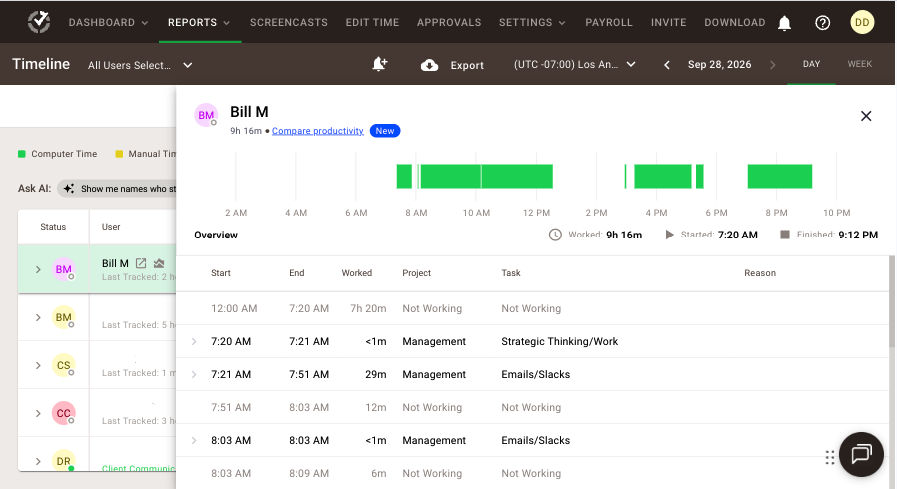
Open the Timeline Report. Filter by user and date, then use Day view to inspect start and end times, tracked-time blocks, and gaps. Switch to Week view for a daily summary across the week. Expand a user’s row for more detail. A gap shows no recorded time for that interval; it does not, by itself, establish why tracking stopped.
Relevant Articles
- Time Doctor Automatic vs. Interactive Desktop App: Which One Should You Use?
- How to Limit the Automatic App Tracking to Specific Hours
- The Timeline Report: What It Is and How to Read It
- What Are the Main Parts of the Interactive Desktop App?
Should there be any inconsistencies or concerns regarding the article, contact support@timedoctor.com for prompt assistance.