
Note: Email address change is available in all Time Doctor subscription plans and can be accessed by all user roles.
TL;DR
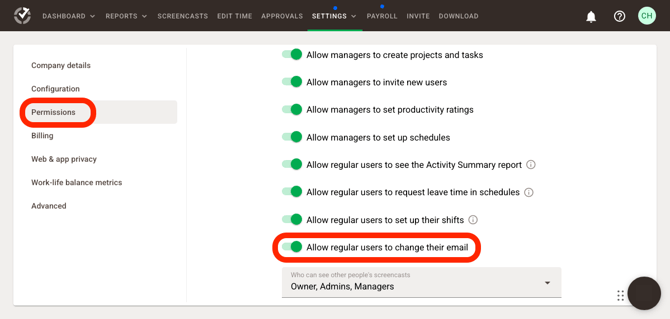
An extra permission can be triggered to allow or disallow updating of email addresses for regular users by going into Settings > Company Settings > Permission and navigate to Allow regular users to change their email settings.
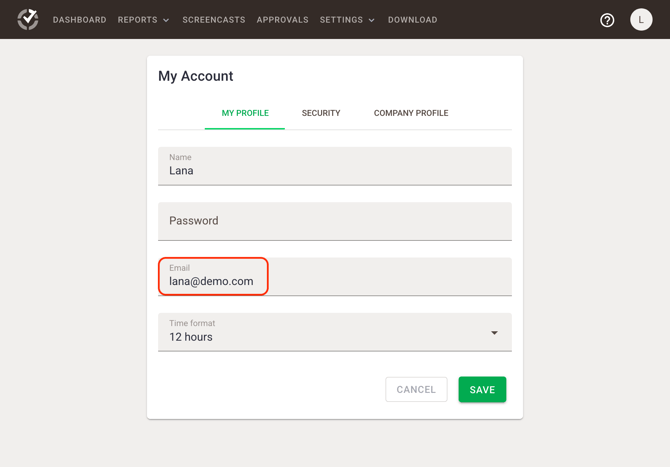
To change an email address, go to My Account, update the Email field, and click Save. Admins cannot change employee email addresses—employees must do it themselves.
Users who are logging in using SSO are prohibitted to change email addresses.
Control whether regular users can update their own email addresses through a dedicated permission setting.
Go to Settings / Company Settings / Permission, then locate Allow regular users to change their email settings.
- Enable this option to allow regular users to update their email addresses.
- Disable this option to restrict email changes and keep updates limited.
Use this setting to align email update permissions with internal security, compliance, and account management policies.
Steps to update/change email address:
- Click the user name at the top-right corner of the menu.
- Select My Account.
- In the Email field, enter the new email address.
- Click Save.
FAQ
How Can I Change an Employee’s Email Address as an Admin?
Changing an employee’s email address is not supported.
Ask the employee to update their own email address following the steps above.
Should there be any inconsistencies or concerns regarding the article, contact support@timedoctor.com for prompt assistance.